> ## Documentation Index
> Fetch the complete documentation index at: https://help.csvbox.io/llms.txt
> Use this file to discover all available pages before exploring further.
# Environment Variables
> Pass dynamic values at importer initialization and reference them in your sheet settings and JavaScript code.
Environment variables are dynamic values you define during importer initialization and then access in the sheet configuration. Use them to configure the environment of your importer.
The values you pass at initialization replace the placeholders referenced in the sheet settings with double curly braces.
## Defining environment variables
Create an object named `environment`.
Add the variables to this object in `: ` format.
Pass the `environment` object as a parameter to the importer initialization function.
Pass the `environment` object to the `CSVBoxImporter` function:
```javascript theme={null}
```
Minimum version 1.1.11 of the `@csvbox/react` library is required to use this feature.
Pass environment variables as an object to the `environment` property of the `CSVBoxButton` component.
```jsx theme={null}
{
if(result){
console.log("success");
console.log(data.row_success + " rows uploaded");
//custom code
}else{
console.log("fail");
//custom code
}
}}
render={(launch, isLoading)=>{
return ;
}}
>
Import
```
Minimum version 1.1.12 of the `@csvbox/angular` library is required to use this feature.
Pass environment variables as an object to the `environment` property of the `AppComponent`.
```javascript theme={null}
@Component({
selector: 'app-root',
template: `
Import
`
})
export class AppComponent {
title = 'example';
licenseKey = 'YOUR_LICENSE_KEY_HERE';
user = { user_id: 'default123' };
environment = {
env_name: 'staging',
base_url: "https://staging.mydomain.com",
authorized_domain: "https://staging.myapp.com",
user_id: "default123"
};
imported(result: boolean, data: any) {
if(result) {
console.log("Sheet uploaded successfully");
console.log(data.row_success + " rows uploaded");
}else{
console.log("There was some problem uploading the sheet");
}
}
}
```
Minimum version 1.1.8 of the `@csvbox/vuejs` library is required to use this feature. Minimum version 1.1.5 of the `@csvbox/vuejs3` library is required to use this feature.
Pass environment variables as an object to the `environment` property of the `CSVBoxButton` component.
```javascript theme={null}
Upload File
```
Environment variable names must not contain spaces or special characters other than `_` (underscore).
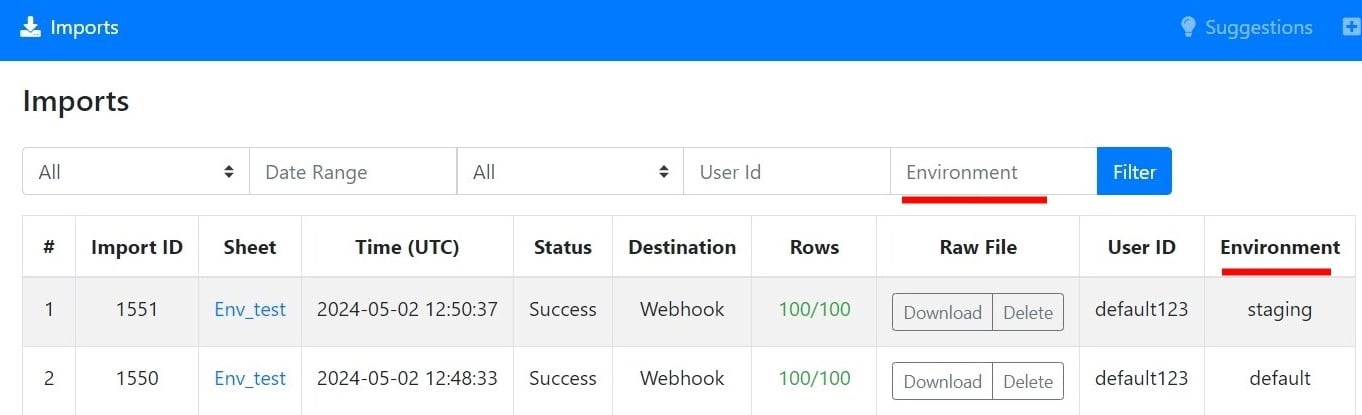
`env_name` is a CSVbox reserved keyword that tags the environment. Each import is categorized by its value: pass values such as `'production'`, `'staging'`, or `'local'`. If you don't pass a value, `env_name` defaults to `'default'`. You can filter individual imports by `env_name` in the CSVbox admin dashboard.
## Accessing the variables
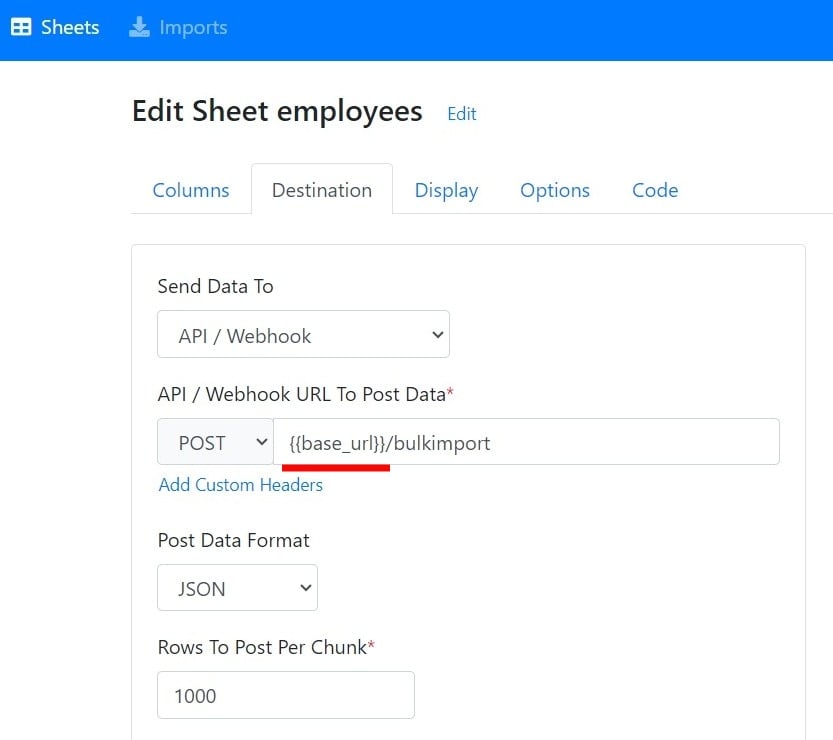
Environment variable values replace all the environment placeholders in the sheet settings. Define a placeholder with double curly brackets: `{{ environment_variable_name }}`.
For example, to reference an environment variable named `base_url`, wrap the variable name in double curly braces:
`{{base_url}}/route-endpoint`
Using environment variables in the webhook URL lets you adjust the webhook route to the specific environment.
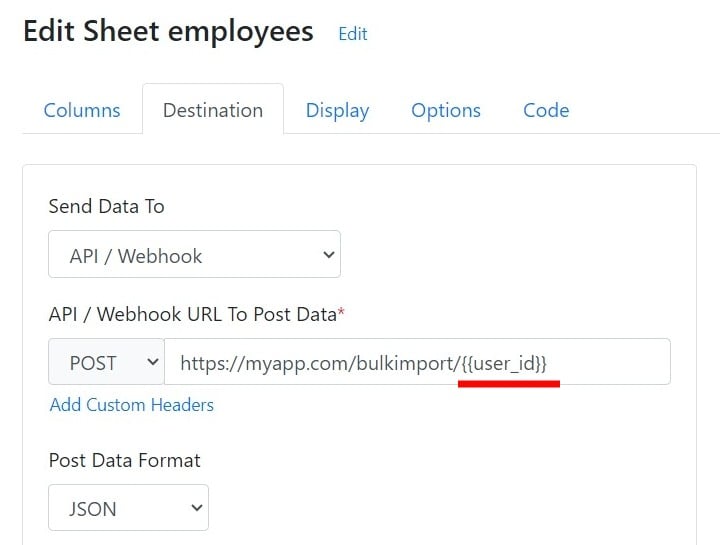
Beyond defining the environment, these variables can configure the importer dynamically based on end users or any other system parameters. For example, define an environment variable `user_id` and pass it to the webhook URL to configure the URL per end user.
You can also access environment variables in [Validation Functions](/sheet-settings/validation-functions), [Virtual Columns](/sheet-settings/virtual-columns), and [Data Transforms](/sheet-settings/data-transforms) JavaScript code.
```javascript theme={null}
// Usage
if(csvbox.environment["user_id"] && csvbox.environment["user_id"] == "abc123") {
// code
}
```
## Encrypting environment variables
You can encrypt environment variables with the [AES Everywhere library](https://github.com/mervick/aes-everywhere) to protect sensitive data.
### AES Everywhere library
The AES Everywhere library provides a simple, effective way to encrypt and decrypt data with the Advanced Encryption Standard (AES) algorithm. It supports many platforms and programming languages, which makes it a versatile choice for securing environment variables.
CSVbox supports multiple encryption schemes for securing sensitive importer data at rest. Choose the mode that best fits your security or compliance requirements.
### Supported encryption types
| Encryption mode | Notes |
| - | - |
| AES-256-CBC (legacy) | Still supported, but recommended to move to newer CBC/GCM variants. |
| Updated AES-256-CBC | Improved IV handling and hardened padding logic. Recommended if you prefer CBC mode. |
| AES-256-GCM | **Most secure**. Provides authenticity + integrity via GCM tags. Recommended for all new installs. |
### Steps
Install the [AES Everywhere library](https://github.com/mervick/aes-everywhere) in your app.
In your app admin dashboard, go to **Account Menu** → **API Keys** page → **Encryption Key** section.
Select the **Encryption Type** and **Encryption Mode**.
Generate a secure encryption key.
Use your encryption key and the AES Everywhere library to encrypt the environment variables.
Encrypt all the required environment variables in one single object.
Here is an example in JavaScript:
```javascript theme={null}
const AES = require('aes-everywhere');
const secretKey = 'your-encryption-key';
const originalValue = {
base_url: "https://staging.mydomain.com",
authorized_domain: "https://staging.myapp.com",
user_id: "default123"
};
const encryptedValue = AES.encrypt(JSON.stringify(originalValue), secretKey);
console.log(`Encrypted Value: ${encryptedValue}`);
//encrypted value: U2FsdGVkX192dXI7yHGs/4Ed+xEC3ejXFINKO6Hufnc=
```
Add the encrypted value to the `environment` object, under the `env_encrypted` key.
```javascript Javascript theme={null}
let importer = new CSVBoxImporter("YOUR_LICENSE_KEY_HERE", {}, callback,
{
lazy: true,
environment: {
env_name: 'staging',
//encrypted values below
env_encrypted: "U2FsdGVkX192dXI7yHGs/4Ed+xEC3ejXFINKO6Hufnc=",
module_id: 234234
}
});
```
The CSVbox importer decrypts the environment variables with the same AES Everywhere library.
This documentation is built and hosted on [Mintlify](https://mintlify.com), a developer documentation platform.
 ## Accessing the variables
Environment variable values replace all the environment placeholders in the sheet settings. Define a placeholder with double curly brackets: `{{ environment_variable_name }}`.
For example, to reference an environment variable named `base_url`, wrap the variable name in double curly braces:
`{{base_url}}/route-endpoint`
Using environment variables in the webhook URL lets you adjust the webhook route to the specific environment.
## Accessing the variables
Environment variable values replace all the environment placeholders in the sheet settings. Define a placeholder with double curly brackets: `{{ environment_variable_name }}`.
For example, to reference an environment variable named `base_url`, wrap the variable name in double curly braces:
`{{base_url}}/route-endpoint`
Using environment variables in the webhook URL lets you adjust the webhook route to the specific environment.
 Beyond defining the environment, these variables can configure the importer dynamically based on end users or any other system parameters. For example, define an environment variable `user_id` and pass it to the webhook URL to configure the URL per end user.
 You can also access environment variables in [Validation Functions](/sheet-settings/validation-functions), [Virtual Columns](/sheet-settings/virtual-columns), and [Data Transforms](/sheet-settings/data-transforms) JavaScript code.
```javascript theme={null}
// Usage
if(csvbox.environment["user_id"] && csvbox.environment["user_id"] == "abc123") {
// code
}
```
## Encrypting environment variables
You can encrypt environment variables with the [AES Everywhere library](https://github.com/mervick/aes-everywhere) to protect sensitive data.
### AES Everywhere library
The AES Everywhere library provides a simple, effective way to encrypt and decrypt data with the Advanced Encryption Standard (AES) algorithm. It supports many platforms and programming languages, which makes it a versatile choice for securing environment variables.
CSVbox supports multiple encryption schemes for securing sensitive importer data at rest. Choose the mode that best fits your security or compliance requirements.
### Supported encryption types
| Encryption mode | Notes |
| - | - |
| AES-256-CBC (legacy) | Still supported, but recommended to move to newer CBC/GCM variants. |
| Updated AES-256-CBC | Improved IV handling and hardened padding logic. Recommended if you prefer CBC mode. |
| AES-256-GCM | **Most secure**. Provides authenticity + integrity via GCM tags. Recommended for all new installs. |
### Steps
You can also access environment variables in [Validation Functions](/sheet-settings/validation-functions), [Virtual Columns](/sheet-settings/virtual-columns), and [Data Transforms](/sheet-settings/data-transforms) JavaScript code.
```javascript theme={null}
// Usage
if(csvbox.environment["user_id"] && csvbox.environment["user_id"] == "abc123") {
// code
}
```
## Encrypting environment variables
You can encrypt environment variables with the [AES Everywhere library](https://github.com/mervick/aes-everywhere) to protect sensitive data.
### AES Everywhere library
The AES Everywhere library provides a simple, effective way to encrypt and decrypt data with the Advanced Encryption Standard (AES) algorithm. It supports many platforms and programming languages, which makes it a versatile choice for securing environment variables.
CSVbox supports multiple encryption schemes for securing sensitive importer data at rest. Choose the mode that best fits your security or compliance requirements.
### Supported encryption types
| Encryption mode | Notes |
| - | - |
| AES-256-CBC (legacy) | Still supported, but recommended to move to newer CBC/GCM variants. |
| Updated AES-256-CBC | Improved IV handling and hardened padding logic. Recommended if you prefer CBC mode. |
| AES-256-GCM | **Most secure**. Provides authenticity + integrity via GCM tags. Recommended for all new installs. |
### Steps