> ## Documentation Index
> Fetch the complete documentation index at: https://help.csvbox.io/llms.txt
> Use this file to discover all available pages before exploring further.
# Server-Side Validation
> Validate submitted data at your server and report errors back to users for correction and re-upload.
Server-side validation checks incoming data against your own business rules on your server, then relays any errors back to the importer. The check can be as simple as verifying that a user ID exists in your database, or something more complex that involves custom logic. Users then fix the errors and re-submit the data.
## How it works
 Go to **Edit Sheet** → **Destination** tab → enable **Server Side Validation**.
 The External Validation option is available only for the [API data destination](/destinations#api--webhook).
Users upload the spreadsheet, map columns, verify data, and then submit.
The importer sends the spreadsheet data via `POST` requests with JSON values to the API endpoint you configured. The request schema is available [here](/destinations/api-webhook#sample-json-post-to-your-api).
Your app validates the data against your business rules:
* **Validation succeeds (no errors found)**: your API returns a `200` HTTP response code, and the user sees the success screen.
* **Validation fails (one or more errors found)**: your API returns a `211` HTTP response code along with the validation errors in JSON format. See the [error response format](/advanced-installation/server-side-validation#error-types).
Your API must return the `211` HTTP response status code to tell the CSVbox importer that there are one or more server-side validation errors.
To view the results screen, configure the CSVbox Results Page settings: go to **Sheet Settings** → **Display** → **Results Page** and set **Closing the import dialog box** to **Do not close on import complete**.
The External Validation option is available only for the [API data destination](/destinations#api--webhook).
Users upload the spreadsheet, map columns, verify data, and then submit.
The importer sends the spreadsheet data via `POST` requests with JSON values to the API endpoint you configured. The request schema is available [here](/destinations/api-webhook#sample-json-post-to-your-api).
Your app validates the data against your business rules:
* **Validation succeeds (no errors found)**: your API returns a `200` HTTP response code, and the user sees the success screen.
* **Validation fails (one or more errors found)**: your API returns a `211` HTTP response code along with the validation errors in JSON format. See the [error response format](/advanced-installation/server-side-validation#error-types).
Your API must return the `211` HTTP response status code to tell the CSVbox importer that there are one or more server-side validation errors.
To view the results screen, configure the CSVbox Results Page settings: go to **Sheet Settings** → **Display** → **Results Page** and set **Closing the import dialog box** to **Do not close on import complete**.
 If there are one or more server-side validation errors, users see the fail screen with a button to view the errors.
Clicking the **Errors** button takes users to the Verify Data screen with all the server-side errors displayed.
On re-submit, the process repeats: the importer pushes the data to your API endpoint via `POST` requests and looks for errors in the response.
Each re-submit is treated as a fresh import with a new `Import_Id`.
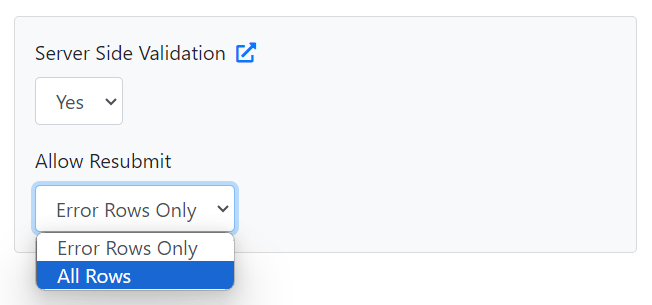
To let users re-submit all the rows (instead of only the error rows), select the **All Rows** option as shown below:
If there are one or more server-side validation errors, users see the fail screen with a button to view the errors.
Clicking the **Errors** button takes users to the Verify Data screen with all the server-side errors displayed.
On re-submit, the process repeats: the importer pushes the data to your API endpoint via `POST` requests and looks for errors in the response.
Each re-submit is treated as a fresh import with a new `Import_Id`.
To let users re-submit all the rows (instead of only the error rows), select the **All Rows** option as shown below:
 ## Error types
CSVbox server-side validation supports the following error types:
* **table**: Shows high-level or common errors that apply to the entire upload. Renders as a dismissible alert above the grid.
* **row**: Shows errors that apply to a whole row, not a specific cell. Renders as a red badge on the row number; clicking it opens a pop-up with the message.
* **column**: Shows validation errors that apply to an entire column. Use these when the issue is with the column itself rather than with any individual row or cell.
* **cell**: The previous behavior; highlights an individual cell with an inline message. This documentation refers to these as "cell errors."
### UI behavior
* **Table errors** appear in a prominent alert banner above the grid until dismissed or replaced by a subsequent validation run.
* **Row errors** highlight the row index with a red badge. Clicking the badge opens a pop-over containing your `message`.
* **Column errors** highlight the column name with a red badge. Clicking the badge opens a pop-over containing your `message`.
* **Cell errors** continue to highlight individual cells with inline messages as before.
### When to use each type
* **table**: Missing required columns, inconsistent file format, duplicate file, or any condition that makes the whole dataset invalid.
* **row**: Cross-field checks within the same row (for example, "End Date must be after Start Date"), referential issues that aren't tied to a single column, or row-level business rules.
* **column**: Issues that apply to a full column rather than to one cell or row (for example, an invalid column name, or a required column with an incorrect format or configuration).
* **cell**: Format, length, or pattern errors, disallowed values, or any validation that is clearly attributable to one column.
## Response format JSON
CSVbox expects the validation endpoint to return an array of error objects.
### Fields
| Parameter | Type | Description |
| - | - | - |
| `type` | string | `"table"`, `"row"`, `"column"`, or `"cell"`. Defaults to `"cell"`. (Optional) |
| `row_id` | integer | The row number of the error. Starts with 1. (Required for `row` and `cell`) |
| `column` | string | The CSVbox [column name](/sheet-settings/columns#column-name) (the field you mapped), not the user's original header. It is case-sensitive. (Required for `column` and `cell`) |
| `message` | string | String to display to the user. Basic HTML line breaks like `
## Error types
CSVbox server-side validation supports the following error types:
* **table**: Shows high-level or common errors that apply to the entire upload. Renders as a dismissible alert above the grid.
* **row**: Shows errors that apply to a whole row, not a specific cell. Renders as a red badge on the row number; clicking it opens a pop-up with the message.
* **column**: Shows validation errors that apply to an entire column. Use these when the issue is with the column itself rather than with any individual row or cell.
* **cell**: The previous behavior; highlights an individual cell with an inline message. This documentation refers to these as "cell errors."
### UI behavior
* **Table errors** appear in a prominent alert banner above the grid until dismissed or replaced by a subsequent validation run.
* **Row errors** highlight the row index with a red badge. Clicking the badge opens a pop-over containing your `message`.
* **Column errors** highlight the column name with a red badge. Clicking the badge opens a pop-over containing your `message`.
* **Cell errors** continue to highlight individual cells with inline messages as before.
### When to use each type
* **table**: Missing required columns, inconsistent file format, duplicate file, or any condition that makes the whole dataset invalid.
* **row**: Cross-field checks within the same row (for example, "End Date must be after Start Date"), referential issues that aren't tied to a single column, or row-level business rules.
* **column**: Issues that apply to a full column rather than to one cell or row (for example, an invalid column name, or a required column with an incorrect format or configuration).
* **cell**: Format, length, or pattern errors, disallowed values, or any validation that is clearly attributable to one column.
## Response format JSON
CSVbox expects the validation endpoint to return an array of error objects.
### Fields
| Parameter | Type | Description |
| - | - | - |
| `type` | string | `"table"`, `"row"`, `"column"`, or `"cell"`. Defaults to `"cell"`. (Optional) |
| `row_id` | integer | The row number of the error. Starts with 1. (Required for `row` and `cell`) |
| `column` | string | The CSVbox [column name](/sheet-settings/columns#column-name) (the field you mapped), not the user's original header. It is case-sensitive. (Required for `column` and `cell`) |
| `message` | string | String to display to the user. Basic HTML line breaks like `
` are supported. |
### Example payload
```json theme={null}
[
{
"type": "table",
"message": "Missing address.
Missing department.
Resubmit."
},
{
"type": "cell",
"row_id": 1,
"column": "employee_id",
"message": "Invalid Emp ID"
},
{
"row_id": 2,
"column": "dept",
"message": "Department does not exist"
},
{
"row_id": 3,
"column": "employee_name",
"message": "Employee's name has changed"
},
{
"type": "row",
"row_id": 3,
"message": "Cannot add this row"
},
{
"type": "column",
"column": "employee_id",
"message": "Invalid column name"
}
]
```
You can mix **table**, **row**, **column**, and **cell** errors in the same response.
## Additional attributes in the client data object
When **Server-Side Validation (SSV)** is enabled, the data object received at the client (after submission) includes additional attributes that help you handle validation states programmatically.
| Attribute | Description |
| - | - |
| `ssv_enabled` | Indicates whether Server-Side Validation is active for the current sheet. |
| `ssv_fail` | Set to **true** only when the server returns a **211 response code**, meaning the import failed due to SSV errors. |
| `ssv_row_fail` | Number of rows that failed during server-side validation. |
| `ssv_table_error` | True if a table-level validation error was returned by the server. |
Use these attributes to detect and respond to validation outcomes directly from your client application, for example by displaying custom messages, logging failed rows, or triggering retry logic.
### Example response object
```json theme={null}
{
destination_type: "apiwebhook",
env_name: "default",
import_description: "",
import_endtime: 1762774689,
import_id: 12859532,
import_starttime: 1762774686,
import_status: "success",
original_filename: "emp.csv",
raw_file: "https://app.csvbox.io/download-rawfile/1-FIIeyMflK9OvAX1EMjncCTlMasuG5Vil35LQNHAQ",
row_count: 5,
row_fail: 0,
row_success: 5,
sheet_id: 1058,
sheet_name: "Customer onboarding",
ssv_enabled: 1,
ssv_fail: 1,
ssv_row_fail: 3,
ssv_table_error: 1
}
```
In this example:
* `ssv_enabled` confirms that SSV is active.
* `ssv_fail` is `true` because the server responded with a **211** code.
* `ssv_row_fail` specifies the number of failed rows.
* `ssv_table_error` is `false`, meaning the issue was at the row level rather than a table-level error.
This documentation is built and hosted on [Mintlify](https://mintlify.com), a developer documentation platform.