> ## Documentation Index
> Fetch the complete documentation index at: https://help.csvbox.io/llms.txt
> Use this file to discover all available pages before exploring further.
# Validations
> Column data types and validation options that check the format of incoming data in the importer.
Validations check every incoming value against the rules you set for its column. When data doesn't match, users see an error message that explains the problem and how to fix it, so only clean data reaches your destination.
## Column data types
While creating a sheet, you can set each column to any of the data types below. If the incoming CSV data doesn't match the column data type (and its validation rules), the user sees an error message identifying the problem and how to fix it.
### Text
This is the default column data type. It accepts any alphanumeric string. Use the `Min Length` and `Max Length` parameters to specify the acceptable length of the text data.
### UUID
The column must contain a valid UUID.
### Number
The **Number** column data type accepts integer and float strings only. Use the `Min Value` and `Max Value` parameters to specify the acceptable range of numbers.
#### Values for Excel setting
When importing data from Excel files, you may run into unexpected issues because of the way Excel internally stores and formats values, especially **Numbers**. Excel often applies formatting to numeric values that changes how they appear:
* A raw value of `0.15` could be displayed as `15%`
* A value of `1200` might appear as `$1,200.00`
* A long number like `1234567890123` may be auto-converted to scientific notation (`1.23E+12`)
These formatted displays can mislead the importer if you're expecting clean numbers. CSVbox lets you choose how values are interpreted for numeric columns:
* **Formatted Values**: Imports numbers exactly as shown in Excel. Examples:
* `$1,200.00` stays `$1,200.00`
* `15%` stays `15%`
* `1.23E+12` stays in scientific notation
* **Original RAW Values**: Strips all formatting and imports the core numeric value. Examples:
* `$1,200.00` → `1200`
* `15%` → `0.15`
* `1.23E+12` → `1230000000000`
Use RAW if you're planning to run calculations or validations on numeric fields post-import.
If your users upload files from different regions, turn on [Smart Date and Number Formats](/dashboard-settings/smart-date-and-number-formats) to handle numbers written with different thousands and decimal separators, such as `1,234.56` and `1.234,56`.
### Percentage
The column must contain a valid **percentage** value. You can specify `Min` and `Max` values, and use the `Output` setting to control whether the percentage is stored as a value such as `50%` or `50`. Percentage values are normalized in the data worker.
### Email
The column must be formatted as an email address.
### Date
The column must be formatted as a date. Select a `Date Format` from the dropdown list to specify the acceptable format. The default format is `MM/DD/YYYY`. If your format isn't in the list, provide a custom format using the formatting tokens below.
| Unit | Token | Output |
| - | - | - |
| **Month** | M | 1 2 ... 11 12 |
| | Mo | 1st 2nd ... 11th 12th |
| | MM | 01 02 ... 11 12 |
| | MMM | Jan Feb ... Nov Dec |
| | MMMM | January February ... November December |
| **Quarter** | Q | 1 2 3 4 |
| | Qo | 1st 2nd 3rd 4th |
| **Day of Month** | D | 1 2 ... 30 31 |
| | Do | 1st 2nd ... 30th 31st |
| | DD | 01 02 ... 30 31 |
| **Day of Year** | DDD | 1 2 ... 364 365 |
| | DDDo | 1st 2nd ... 364th 365th |
| | DDDD | 001 002 ... 364 365 |
| **Day of Week** | d | 0 1 ... 5 6 |
| | do | 0th 1st ... 5th 6th |
| | dd | Su Mo ... Fr Sa |
| | ddd | Sun Mon ... Fri Sat |
| | dddd | Sunday Monday ... Friday Saturday |
| **Day of Week (Locale)** | e | 0 1 ... 5 6 |
| **Day of Week (ISO)** | E | 1 2 ... 6 7 |
| **Week of Year** | w | 1 2 ... 52 53 |
| | wo | 1st 2nd ... 52nd 53rd |
| | ww | 01 02 ... 52 53 |
| **Week of Year (ISO)** | W | 1 2 ... 52 53 |
| | Wo | 1st 2nd ... 52nd 53rd |
| | WW | 01 02 ... 52 53 |
| **Year** | YY | 70 71 ... 29 30 |
| | YYYY | 1970 1971 ... 2029 2030 |
| | YYYYYY | -001970 -001971 ... +001907 +001971. **Note:** [Expanded Years](https://tc39.es/ecma262/#sec-expanded-years) (covering the full time value range of approximately 273,790 years forward or backward from 01 January, 1970) |
| | Y | 1970 1971 ... 9999 +10000 +10001. **Note:** This complies with the ISO 8601 standard for dates past the year 9999 |
| **Era Year** | y | 1 2 ... 2020 ... |
| **Era** | N, NN, NNN | BC AD. **Note:** Abbr era name |
| | NNNN | Before Christ, Anno Domini. **Note:** Full era name |
| | NNNNN | BC AD. **Note:** Narrow era name |
| **Week Year** | gg | 70 71 ... 29 30 |
| | gggg | 1970 1971 ... 2029 2030 |
| **Week Year (ISO)** | GG | 70 71 ... 29 30 |
| | GGGG | 1970 1971 ... 2029 2030 |
| **AM/PM** | A | AM PM |
| | a | am pm |
| **Hour** | H | 0 1 ... 22 23 |
| | HH | 00 01 ... 22 23 |
| | h | 1 2 ... 11 12 |
| | hh | 01 02 ... 11 12 |
| | k | 1 2 ... 23 24 |
| | kk | 01 02 ... 23 24 |
| **Minute** | m | 0 1 ... 58 59 |
| | mm | 00 01 ... 58 59 |
| **Second** | s | 0 1 ... 58 59 |
| | ss | 00 01 ... 58 59 |
| **Fractional Second** | S | 0 1 ... 8 9 |
| | SS | 00 01 ... 98 99 |
| | SSS | 000 001 ... 998 999 |
| | SSSS ... SSSSSSSSS | 000\[0..] 001\[0..] ... 998\[0..] 999\[0..] |
| **Time Zone** | z or zz | EST CST ... MST PST. **Note:** as of **1.6.0**, the z/zz format tokens have been deprecated from plain moment objects. [Read more about it here.](https://github.com/moment/moment/issues/162) However, they *do* work if you are using a specific time zone with the moment-timezone addon. |
| | Z | -07:00 -06:00 ... +06:00 +07:00 |
| | ZZ | -0700 -0600 ... +0600 +0700 |
| **Unix Timestamp** | X | 1360013296 |
| **Unix Millisecond Timestamp** | x | 1360013296123 |
For example, the token string `dddd, MMMM Do YYYY, h:mm:ss a` requires the date to be in the format `Sunday, February 14th 2010, 3:25:50 pm`.
If your users upload files from different regions, turn on [Smart Date and Number Formats](/dashboard-settings/smart-date-and-number-formats) to convert dates into your `Date Format` and ask the user when a date such as `04/05/2024` could be read two ways.
### Time
The column must be formatted as a time. Select a `Time Format` from the dropdown list to specify the acceptable format. The default format is `HH:mm:ss`. If your format isn't in the list, provide a custom format using the formatting tokens below.
| Unit | Token | Output |
| - | - | - |
| **AM/PM** | A | AM PM |
| | a | am pm |
| **Hour** | H | 0 1 ... 22 23 |
| | HH | 00 01 ... 22 23 |
| | h | 1 2 ... 11 12 |
| | hh | 01 02 ... 11 12 |
| | k | 1 2 ... 23 24 |
| | kk | 01 02 ... 23 24 |
| **Minute** | m | 0 1 ... 58 59 |
| | mm | 00 01 ... 58 59 |
| **Second** | s | 0 1 ... 58 59 |
| | ss | 00 01 ... 58 59 |
| **Fractional Second** | S | 0 1 ... 8 9 |
| | SS | 00 01 ... 98 99 |
| | SSS | 000 001 ... 998 999 |
| | SSSS ... SSSSSSSSS | 000\[0..] 001\[0..] ... 998\[0..] 999\[0..] |
| **Time Zone** | z or zz | EST CST ... MST PST. **Note:** as of **1.6.0**, the z/zz format tokens have been deprecated from plain moment objects. [Read more about it here.](https://github.com/moment/moment/issues/162) However, they *do* work if you are using a specific time zone with the moment-timezone addon. |
| | Z | -07:00 -06:00 ... +06:00 +07:00 |
| | ZZ | -0700 -0600 ... +0600 +0700 |
| **Unix Timestamp** | X | 1360013296 |
| **Unix Millisecond Timestamp** | x | 1360013296123 |
### IANA timezone
The column must contain a valid IANA timezone. CSVbox validates the timezone and normalizes timezone values during processing.
### Boolean
The column must be castable as a boolean. Accepted inputs are `true`, `false`, `TRUE`, `FALSE`, `1`, `0`, `yes`, `no`, `y`, `n`, `on`, `off`, `enabled`, and `disabled`.
#### Display as checkbox
Turn on **Display as checkbox** to show a checkbox in each cell of the column on the **Verify Data** step. Instead of validating against the accepted values above, the importer converts every value to `true` or `false`, so users tick or untick boxes and the column never shows a validation error.
| Value in the file | Result |
| - | - |
| Blank, `0`, `off`, `n`, `no`, `false`, `disabled` | Unchecked (`false`) |
| Anything else, such as `1`, `yes`, `true`, or `on` | Checked (`true`) |
Matching ignores capital letters and surrounding spaces. The destination receives the converted `true` or `false` value. See [Data Destinations](/destinations) for how each destination handles it.
Any text that isn't in the unchecked list is treated as checked, so a value such as `maybe` or `N/A` becomes `true`. To reject unexpected values, keep this option off.
On the **Verify Data** step, a click selects a cell and a second click on the selected cell flips the checkbox. Double-clicking or pressing **Space** also flips it. Sorting groups checked rows together, and search, filter, and Find and Replace match by meaning, so searching for `y` finds every checked cell. When Find and Replace is set to **All columns**, it matches the literal text instead.
**Default value:** Off
### Regex
The column data must match the given regular expression. Specify the `Regex`, and the importer pattern-matches it against the incoming data.
### JSON
The column must contain valid JSON data.
### IP
The column must be an IP address. Select the `IP Version`.
### URL
The column must be a valid URL.
### Domain
The column must contain a valid domain name.
### Credit card
The column must be formatted as a credit card number. Acceptable formats are `5555555555554444`, `5555-5555-5555-4444`, and `5555 5555 5555 4444`.
### UPC
The column must contain a valid UPC product barcode.
### EAN
The column must contain a valid EAN product barcode.
### IMEI
The column must contain a valid IMEI number.
### Phone number
The column is validated for phone number formats based on the [libphonenumber.js library](https://catamphetamine.gitlab.io/libphonenumber-js/). Select a default country code. If an incoming phone number has no country code, the default country code is used for validation.
### Currency
The column data must be in a currency amount format. You can specify currency formatting options based on the [Validator.js library](https://github.com/validatorjs/validator.js).
### Currency code
The column must contain a valid currency code.
### List
With the **List** data type, you specify a list of acceptable values. The importer compares the CSV column data with the list and throws a validation error if there's a mismatch.
You specify a list of acceptable `Values` and related `Display Labels`. The importer matches the column data with the list of `Display Labels`. If the data passes validation, the `Values` corresponding to the `Display Labels` are pushed to the destination. For example, say you configure the List column as shown below:
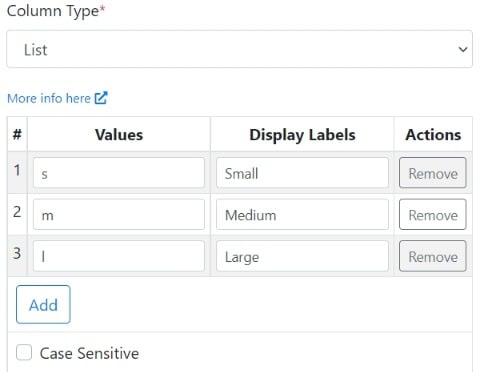 In this case, the acceptable data in the CSV column is `Small`, `Medium`, and `Large`. Based on the actual data in the user's CSV, the values `s`, `m`, or `l` are pushed to your data destination. This lets you accept readable values from your users while pushing data in a format your system understands.
#### Allow other values
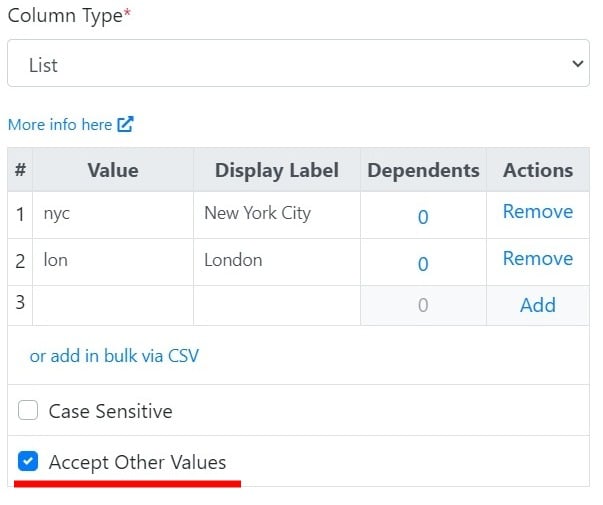
Selecting the **Accept Other Values** option allows users to input values that aren't in the predefined list of acceptable values.
In this case, the acceptable data in the CSV column is `Small`, `Medium`, and `Large`. Based on the actual data in the user's CSV, the values `s`, `m`, or `l` are pushed to your data destination. This lets you accept readable values from your users while pushing data in a format your system understands.
#### Allow other values
Selecting the **Accept Other Values** option allows users to input values that aren't in the predefined list of acceptable values.
 #### Accept list values
When you enable this option, the importer accepts List **Values** interchangeably with **Display Labels** as valid data for the column.
#### Accept list values
When you enable this option, the importer accepts List **Values** interchangeably with **Display Labels** as valid data for the column.
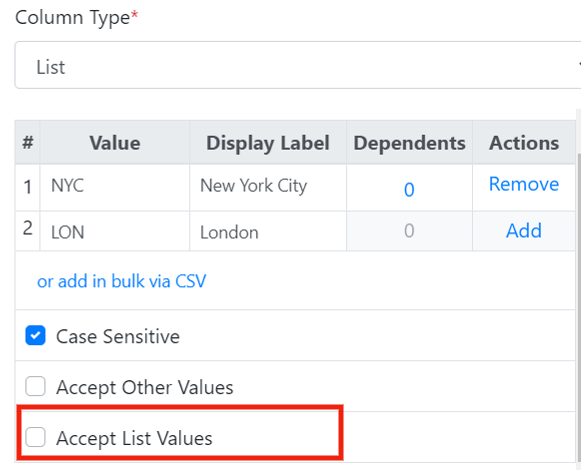 Refer to the list of items in the image above. If the column contains the value `NYC`, the importer fails validation, because it only accepts the display label `New York City`. To make the importer accept `NYC` as well, activate the **Accept List Values** option.
### Dependent list
Sometimes you may want to use more than one list, so that the items available in a second drop-down list depend on the selection made in the first. These are dependent lists. Below is an example of a dependent list.
Refer to the list of items in the image above. If the column contains the value `NYC`, the importer fails validation, because it only accepts the display label `New York City`. To make the importer accept `NYC` as well, activate the **Accept List Values** option.
### Dependent list
Sometimes you may want to use more than one list, so that the items available in a second drop-down list depend on the selection made in the first. These are dependent lists. Below is an example of a dependent list.
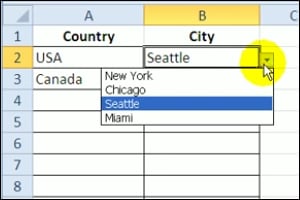 The options in the City column depend on the selection made in the Country column. If you select `USA` in Drop Down 1, you see cities from the USA; if you select `Canada` in Drop Down 1, you see cities from Canada in Drop Down 2.
You can achieve the same functionality in CSVbox with a combination of [List](/dashboard-settings/validations#list) and Dependent List column types (or a combination of [Dynamic List](/dashboard-settings/validations#dynamic-list) and [Dependent Dynamic List](/dashboard-settings/validations#dependent-dynamic-list) column types).
To create conditional lists using the example above:
Create a column `Country`. Set its column type to **List**.
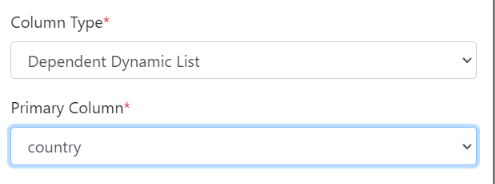
Create a column `City`. Set its column type to **Dependent List**, and select `Country` as the **Primary** column.
The options in the City column depend on the selection made in the Country column. If you select `USA` in Drop Down 1, you see cities from the USA; if you select `Canada` in Drop Down 1, you see cities from Canada in Drop Down 2.
You can achieve the same functionality in CSVbox with a combination of [List](/dashboard-settings/validations#list) and Dependent List column types (or a combination of [Dynamic List](/dashboard-settings/validations#dynamic-list) and [Dependent Dynamic List](/dashboard-settings/validations#dependent-dynamic-list) column types).
To create conditional lists using the example above:
Create a column `Country`. Set its column type to **List**.
Create a column `City`. Set its column type to **Dependent List**, and select `Country` as the **Primary** column.
 Go back to the `Country` column and add the list of valid values.
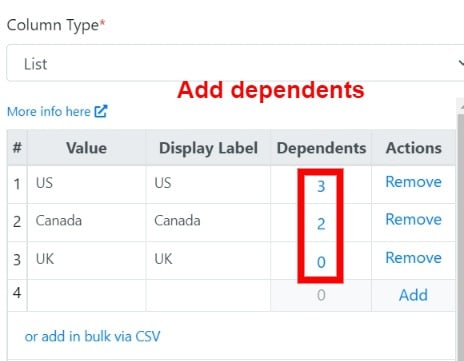
For each valid country value, add dependent (city) values as shown below.
Go back to the `Country` column and add the list of valid values.
For each valid country value, add dependent (city) values as shown below.
 * If you change the name of the primary column or reorder the priority of any of the columns, reassign the primary column in the Dependent List column settings.
* The Display Label and the Value must be unique across all items. Primary items can't share dependents that have the same Display Label and/or the same Value.
### Dynamic list
This is similar to the **List** type above: the importer validates the column data against a list of values. However, instead of providing a static list, the **Dynamic List** column type lets you supply the list of acceptable values in real time via an API.
The API must return the list of values in the JSON format shown below.
```json theme={null}
[
{"value": "uk", "display_label": "England"},
{"value": "us", "display_label": "United States"},
{"value": "au", "display_label": "Australia"}
]
```
For each list item, the `value` field is mandatory, while `display_label` is optional.
You can attach the [custom user attributes](/getting-started/2-install-code#referencing-the-user) as query parameters to the Dynamic List API request. The `csvbox_` prefix is added to the custom user attribute query parameters. This helps you identify the users or environment and return a relevant list of values.
To authenticate the requests, pass the authorization headers via the [`dynamic_list_request_headers`](/getting-started/2-install-code#dynamic_list_request_headers) initialization option.
### Dependent dynamic list
Sometimes you may want to use more than one list, so that the items available in a second drop-down list depend on the selection made in the first. These are dependent lists. Below is an example of a dependent list.
* If you change the name of the primary column or reorder the priority of any of the columns, reassign the primary column in the Dependent List column settings.
* The Display Label and the Value must be unique across all items. Primary items can't share dependents that have the same Display Label and/or the same Value.
### Dynamic list
This is similar to the **List** type above: the importer validates the column data against a list of values. However, instead of providing a static list, the **Dynamic List** column type lets you supply the list of acceptable values in real time via an API.
The API must return the list of values in the JSON format shown below.
```json theme={null}
[
{"value": "uk", "display_label": "England"},
{"value": "us", "display_label": "United States"},
{"value": "au", "display_label": "Australia"}
]
```
For each list item, the `value` field is mandatory, while `display_label` is optional.
You can attach the [custom user attributes](/getting-started/2-install-code#referencing-the-user) as query parameters to the Dynamic List API request. The `csvbox_` prefix is added to the custom user attribute query parameters. This helps you identify the users or environment and return a relevant list of values.
To authenticate the requests, pass the authorization headers via the [`dynamic_list_request_headers`](/getting-started/2-install-code#dynamic_list_request_headers) initialization option.
### Dependent dynamic list
Sometimes you may want to use more than one list, so that the items available in a second drop-down list depend on the selection made in the first. These are dependent lists. Below is an example of a dependent list.
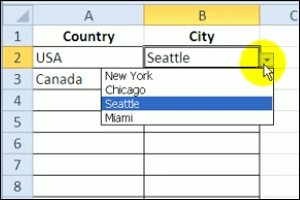 The options in the City column depend on the selection made in the Country column. If you select `USA` in Drop Down 1, you see cities from the USA; if you select `Canada` in Drop Down 1, you see cities from Canada in Drop Down 2.
You can achieve the same functionality in CSVbox with a combination of [Dynamic List](/dashboard-settings/validations#dynamic-list) and Dependent Dynamic List column types (or a combination of [List](/dashboard-settings/validations#list) and [Dependent List](/dashboard-settings/validations#dependent-list) column types).
To create conditional lists using the example above:
Create a column `Country`. Set its column type to **Dynamic List**.
Create a column `City`. Set its column type to **Dependent Dynamic List**, and select `Country` as the **Primary** column.
Go back to the `Country` column and configure the API that fetches valid values from your application for `Country` as well as its dependent column, `City`. Your API must return the list of values in the JSON format shown below.
```json theme={null}
[
{"value": "USA", "display_label": "USA", "dependents": [
{"value": "ny", "display_label": "New York"},
{"value": "ch", "display_label": "Chicago"},
{"value": "se", "display_label": "Seattle"},
{"value": "mi", "display_label": "Miami"}
]},
{"value": "Canada", "display_label": "Canada", "dependents": [
{"value": "to", "display_label": "Toronto"},
{"value": "va", "display_label": "Vancouver"}
]}
]
```
The `dependents` object contains the list of valid values for the dependent column based on the primary column value.
* If you change the name of the primary column or reorder the priority of any of the columns, reassign the primary column in the Dependent Dynamic List column settings.
* The Display Label and the Value must be unique across all items. Primary items can't share dependents that have the same Display Label and/or the same Value.
### Multi-select list
The **Multi-select List** data type is similar to the [List](/dashboard-settings/validations#list) data type: you specify a list of acceptable values. While the **List** data type accepts only one value per cell, the **Multi-select List** accepts multiple comma-separated values.
The options in the City column depend on the selection made in the Country column. If you select `USA` in Drop Down 1, you see cities from the USA; if you select `Canada` in Drop Down 1, you see cities from Canada in Drop Down 2.
You can achieve the same functionality in CSVbox with a combination of [Dynamic List](/dashboard-settings/validations#dynamic-list) and Dependent Dynamic List column types (or a combination of [List](/dashboard-settings/validations#list) and [Dependent List](/dashboard-settings/validations#dependent-list) column types).
To create conditional lists using the example above:
Create a column `Country`. Set its column type to **Dynamic List**.
Create a column `City`. Set its column type to **Dependent Dynamic List**, and select `Country` as the **Primary** column.
Go back to the `Country` column and configure the API that fetches valid values from your application for `Country` as well as its dependent column, `City`. Your API must return the list of values in the JSON format shown below.
```json theme={null}
[
{"value": "USA", "display_label": "USA", "dependents": [
{"value": "ny", "display_label": "New York"},
{"value": "ch", "display_label": "Chicago"},
{"value": "se", "display_label": "Seattle"},
{"value": "mi", "display_label": "Miami"}
]},
{"value": "Canada", "display_label": "Canada", "dependents": [
{"value": "to", "display_label": "Toronto"},
{"value": "va", "display_label": "Vancouver"}
]}
]
```
The `dependents` object contains the list of valid values for the dependent column based on the primary column value.
* If you change the name of the primary column or reorder the priority of any of the columns, reassign the primary column in the Dependent Dynamic List column settings.
* The Display Label and the Value must be unique across all items. Primary items can't share dependents that have the same Display Label and/or the same Value.
### Multi-select list
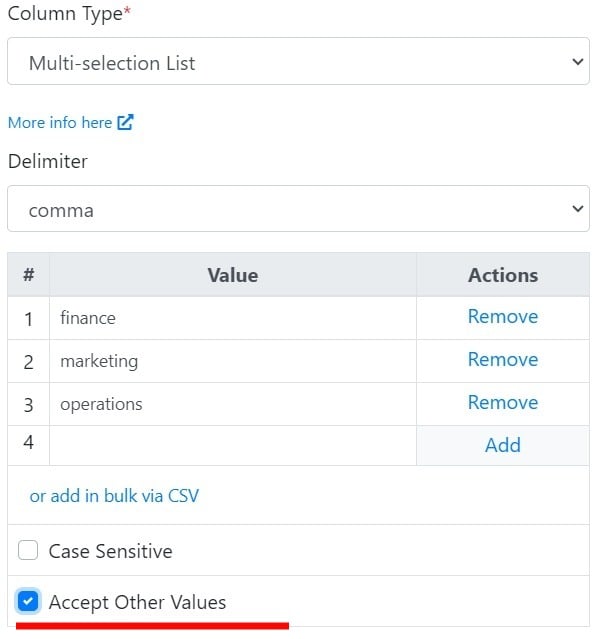
The **Multi-select List** data type is similar to the [List](/dashboard-settings/validations#list) data type: you specify a list of acceptable values. While the **List** data type accepts only one value per cell, the **Multi-select List** accepts multiple comma-separated values.
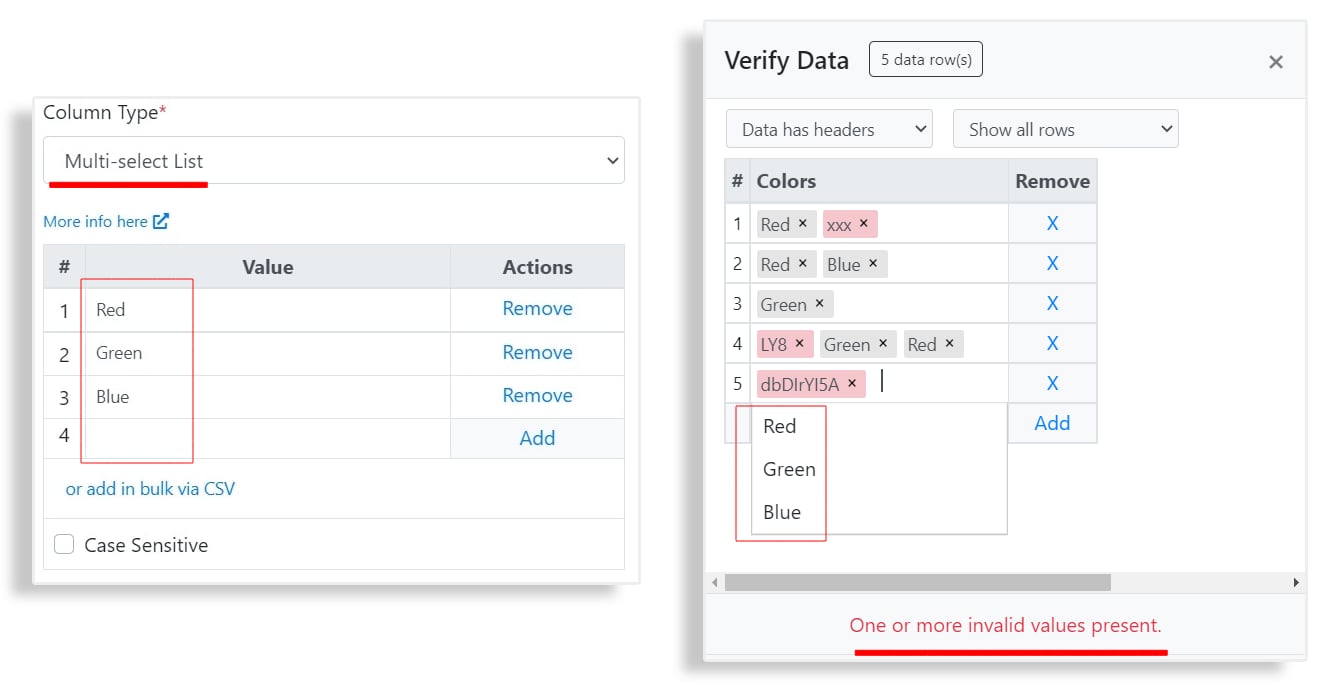 The importer compares the values in the incoming data with the list of acceptable values and throws a validation error if there's a mismatch.
#### Allow other values
Selecting the **Accept Other Values** option allows users to input values that aren't in the predefined list of acceptable values.
The importer compares the values in the incoming data with the list of acceptable values and throws a validation error if there's a mismatch.
#### Allow other values
Selecting the **Accept Other Values** option allows users to input values that aren't in the predefined list of acceptable values.
 ### Dynamic multi-select list
This is similar to the **Multi-select List** type above: the importer accepts multiple comma-separated values. However, instead of providing a static list, you supply the list of acceptable values in real time via an API.
The API must return the list of values in the JSON format shown below.
```json theme={null}
[
{"value": "Red"},
{"value": "Green"},
{"value": "Blue"}
]
```
The importer attaches the [custom user attributes](/getting-started/2-install-code#referencing-the-user) as query parameters to the Dynamic List API request. The `csvbox_` prefix is added to the custom user attribute query parameters. This helps you identify the users or environment and return a relevant list of values.
To authenticate the requests, pass the authorization headers via the [`dynamic_list_request_headers`](/getting-started/2-install-code#dynamic_list_request_headers) initialization option.
## Other validation options
### Column required
Check or uncheck the `Required` checkbox in the **Column Settings** window. When it's ticked, the column data must be present and not empty.
**Required** isn't available for Boolean columns that use [Display as checkbox](/dashboard-settings/validations#display-as-checkbox). A blank value is a valid `false` there.
This documentation is built and hosted on [Mintlify](https://mintlify.com), a developer documentation platform.
### Dynamic multi-select list
This is similar to the **Multi-select List** type above: the importer accepts multiple comma-separated values. However, instead of providing a static list, you supply the list of acceptable values in real time via an API.
The API must return the list of values in the JSON format shown below.
```json theme={null}
[
{"value": "Red"},
{"value": "Green"},
{"value": "Blue"}
]
```
The importer attaches the [custom user attributes](/getting-started/2-install-code#referencing-the-user) as query parameters to the Dynamic List API request. The `csvbox_` prefix is added to the custom user attribute query parameters. This helps you identify the users or environment and return a relevant list of values.
To authenticate the requests, pass the authorization headers via the [`dynamic_list_request_headers`](/getting-started/2-install-code#dynamic_list_request_headers) initialization option.
## Other validation options
### Column required
Check or uncheck the `Required` checkbox in the **Column Settings** window. When it's ticked, the column data must be present and not empty.
**Required** isn't available for Boolean columns that use [Display as checkbox](/dashboard-settings/validations#display-as-checkbox). A blank value is a valid `false` there.
This documentation is built and hosted on [Mintlify](https://mintlify.com), a developer documentation platform.