> ## Documentation Index
> Fetch the complete documentation index at: https://help.csvbox.io/llms.txt
> Use this file to discover all available pages before exploring further.
# Airtable
> Import CSV files and Excel sheets directly into your Airtable tables.
Import CSV files and Excel sheets directly into your [Airtable](https://airtable.com/).
Select **Airtable** as the destination type.
Connect your Airtable by providing the credentials.
Steps to get the Airtable API Key are described [here](https://support.airtable.com/hc/en-us/articles/219046777-How-do-I-get-my-API-key-). Steps to get the Base ID are described [here](https://support.airtable.com/docs/finding-airtable-ids#finding-ids-in-airtable-api).
Specify the table name where you want the data to be pushed.
Map the sheet columns to the Airtable table columns. You can also map custom attributes to table columns.
Your users' CSV data is then appended directly to the Airtable table.
The data fields from Airtable are available in the Map Column modal only if they have **data in the first row**. Add dummy data for each data field in the first row so that they appear in the Map Column modal.
## Operations
There are 2 operations available for Airtable.
### 1. Insert
Creates a new row in the table.
### 2. Upsert
Updates an existing row if a specified value already exists in the table, and inserts a new row if it doesn't. Select the column to check for uniqueness in the **Column Mapping** popup.
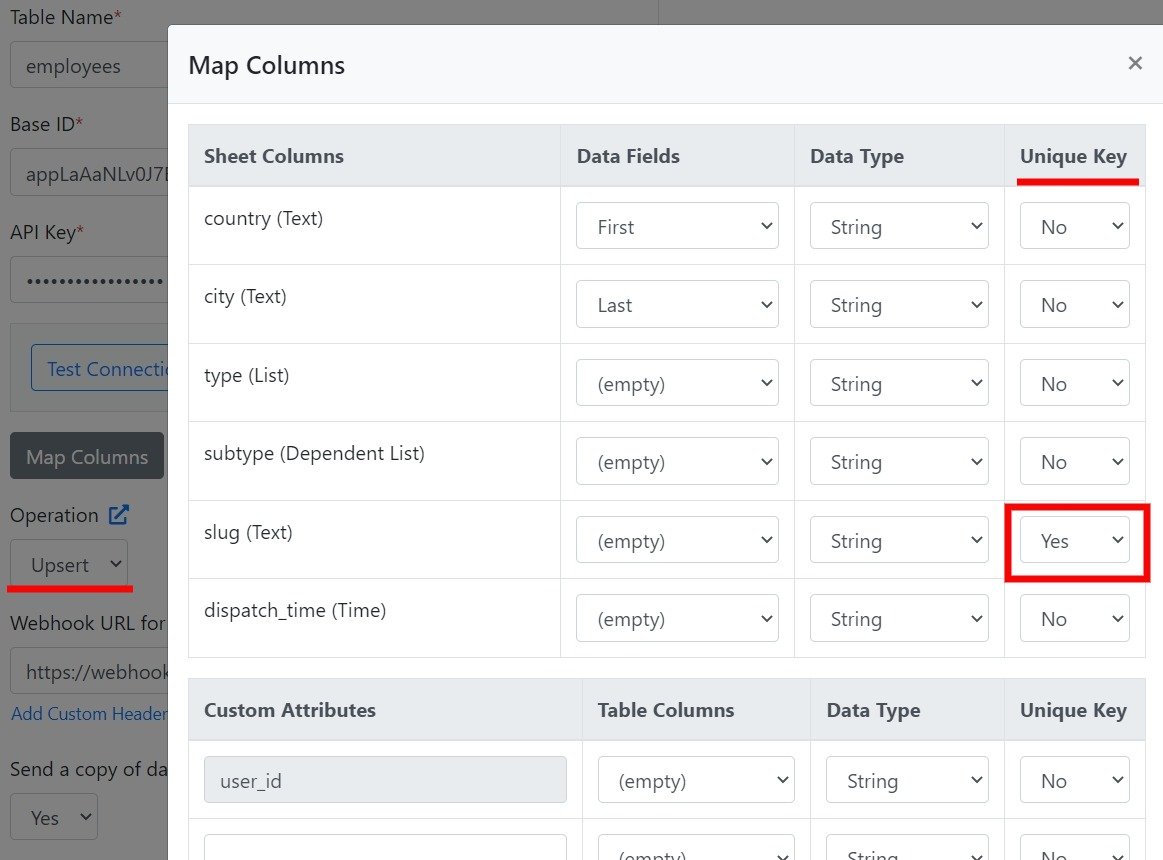 * If zero matches are found, a new row is created.
* If one match is found, that row is updated.
* **If multiple matches are found, the request fails.**
This documentation is built and hosted on [Mintlify](https://mintlify.com), a developer documentation platform.
* If zero matches are found, a new row is created.
* If one match is found, that row is updated.
* **If multiple matches are found, the request fails.**
This documentation is built and hosted on [Mintlify](https://mintlify.com), a developer documentation platform.