> ## Documentation Index
> Fetch the complete documentation index at: https://help.csvbox.io/llms.txt
> Use this file to discover all available pages before exploring further.
# MySQL
> Import CSV files and Excel sheets directly into your MySQL tables.
Import CSV files and Excel sheets directly into your MySQL tables.
Select **MySQL Database** as the destination type.
Connect your MySQL database by providing the credentials.
Specify the table name where you want the data to be pushed.
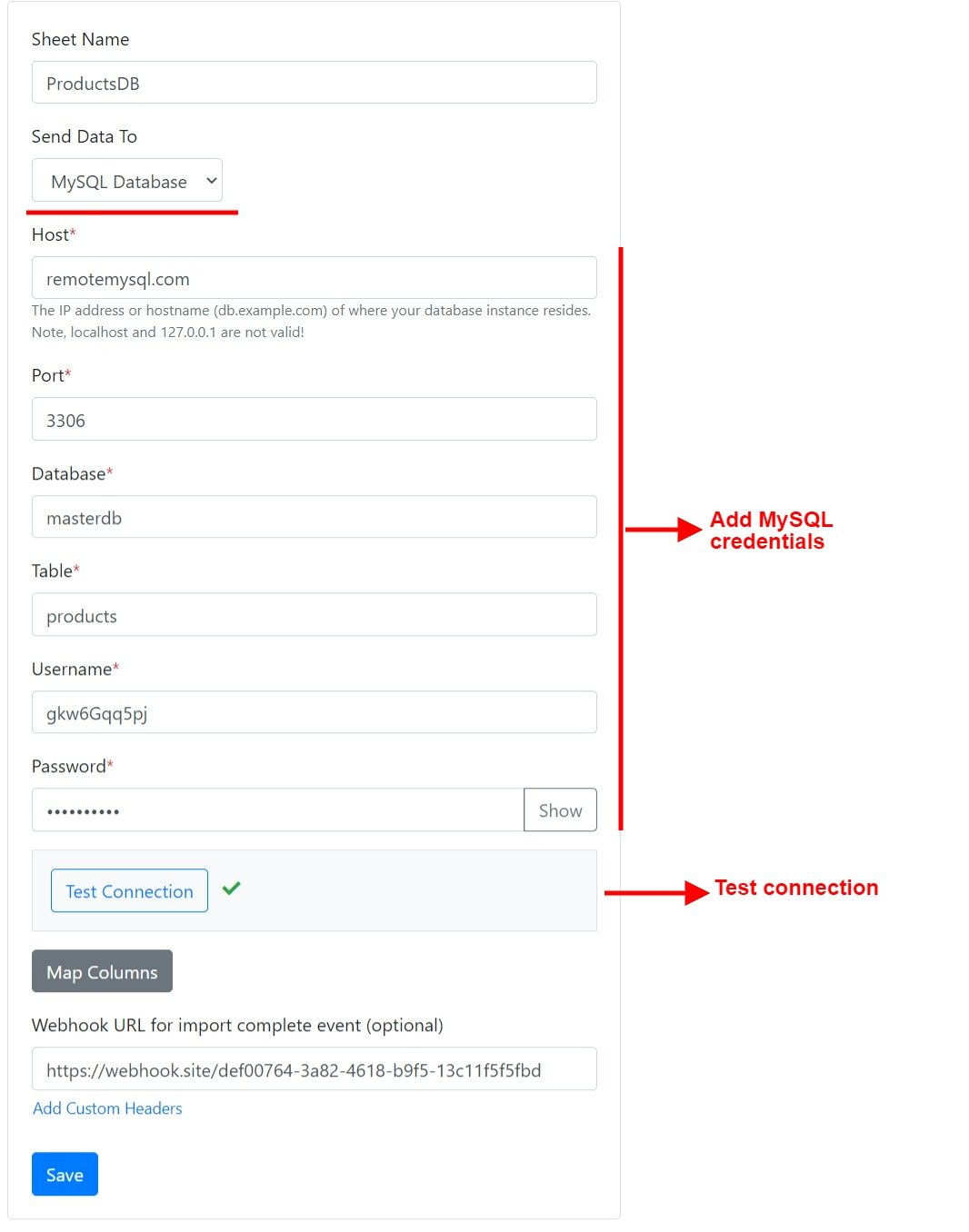 Map the sheet columns to the table columns. You can also map custom attributes to table columns.
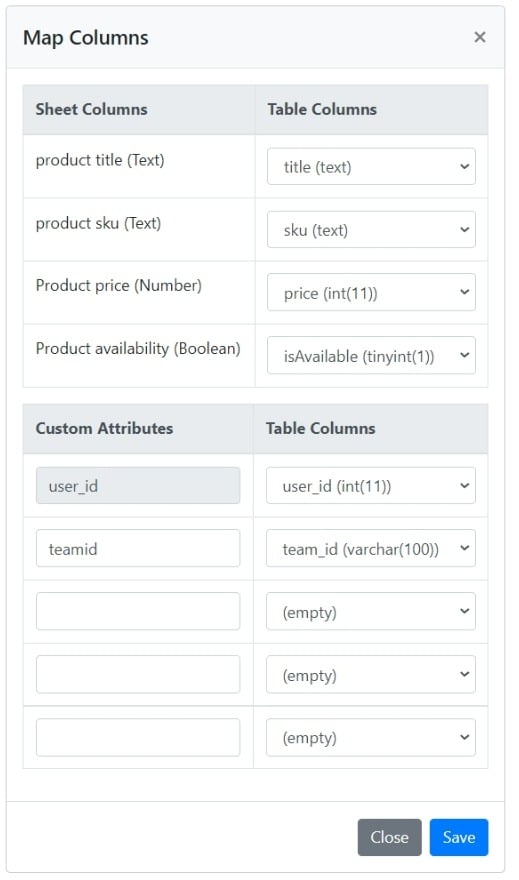 Your users' CSV data is then appended directly to the MySQL table.
Boolean columns that use [Display as checkbox](/dashboard-settings/validations#display-as-checkbox) are pushed as `1` or `0`, which fits a `TINYINT(1)` column.
This documentation is built and hosted on [Mintlify](https://mintlify.com), a developer documentation platform.
Your users' CSV data is then appended directly to the MySQL table.
Boolean columns that use [Display as checkbox](/dashboard-settings/validations#display-as-checkbox) are pushed as `1` or `0`, which fits a `TINYINT(1)` column.
This documentation is built and hosted on [Mintlify](https://mintlify.com), a developer documentation platform.