> ## Documentation Index
> Fetch the complete documentation index at: https://help.csvbox.io/llms.txt
> Use this file to discover all available pages before exploring further.
# Data Transforms
> Bulk edit the dataset with JavaScript before CSVbox pushes it to your system.
Data Transforms let you modify the data with JavaScript before it's uploaded to your app. Use them to reshape, sanitize, or enrich rows in real time, from simple tasks like capitalizing text or formatting dates to complex business logic.
 Prefer not to write code? Use the [If / Else Builder](/advanced-installation/if-else-builder) to set or clear values and delete rows visually with IF / ELSE IF / ELSE conditions.
## How it works
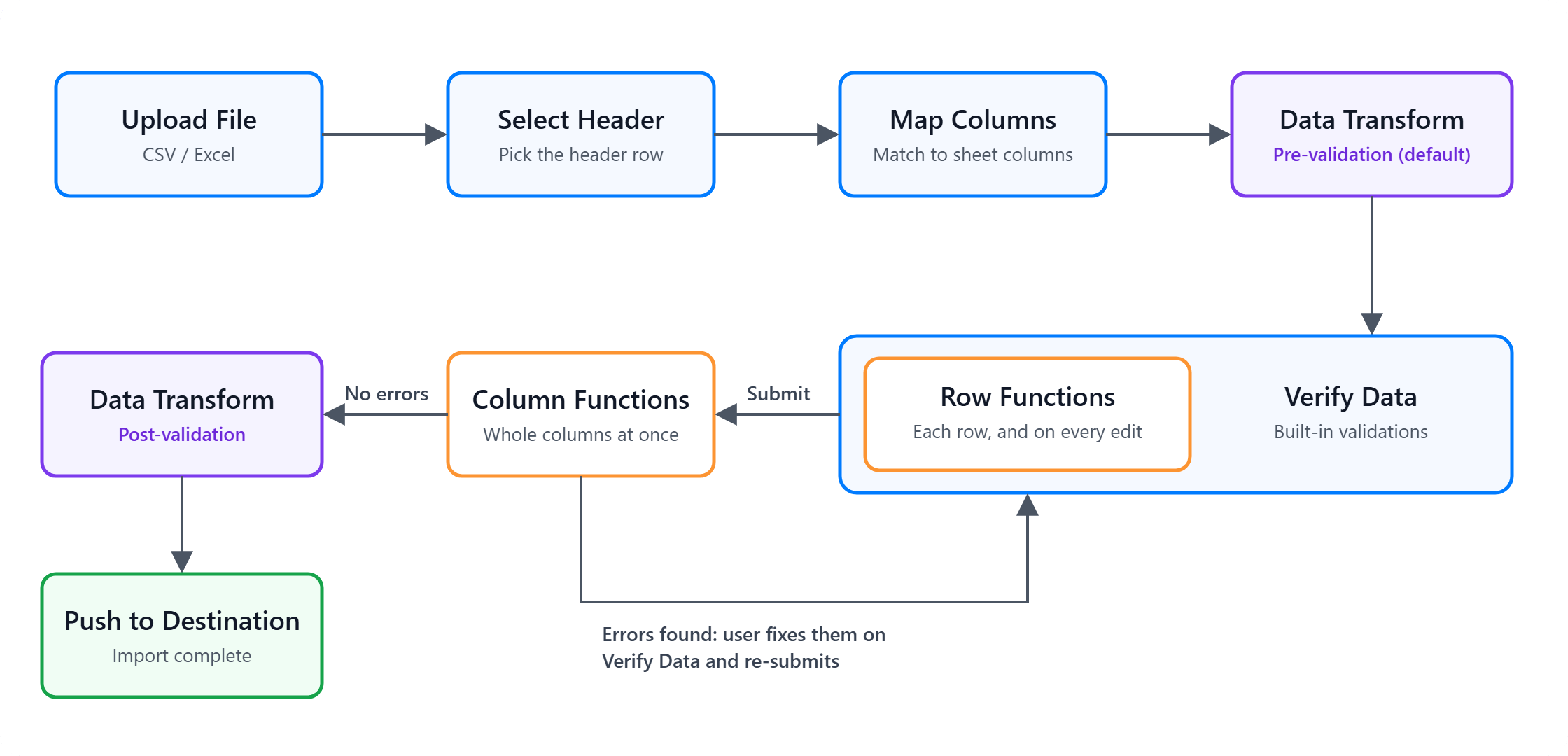
When a CSV file is uploaded, CSVbox parses the data and applies your transformation logic row by row or cell by cell. The JavaScript function you write defines how each row or field is transformed. Once the transformation is complete, the modified data passes to the next stage for validation.
There are two types of Data Transforms:
* **Row Transforms**: apply logic to each row individually, from top to bottom. Use them when one cell depends on other cells in the same row, for example to combine several cells into one or to run a calculation that needs input from different columns.
* **Column Transforms**: apply logic to one or more selected columns at once. Use them when you need to analyze or modify the column as a whole, for example to find duplicate entries and replace each one with a unique identifier. They suit sorting, aggregation, and deduplication.
Column Transforms can slow down the importer, because the entire column dataset is loaded into memory. With large datasets, prefer Row Transforms and reserve Column Transforms for column-wide work such as deduplication or aggregation.
## Row transforms
### Adding row data transforms
On the edit sheet page, go to the **Data Transforms** tab and click **Add Transforms**.
Enter the transform **Name**.
Set **Transform Type** to **Row**.
Provide the **Javascript** code.
Attach **Dependent** libraries.
Click **Save**.
### Row transform examples
#### Append text
Append a constant to the cell value.
```javascript wrap theme={null}
csvbox.row["serial_number"] = csvbox.row["serial_number"] + '_' + csvbox.user["user_id"];
return csvbox;
```
#### Normalize dates
Normalize a date value into US format.
```javascript wrap theme={null}
function normalizeToUSFormat(dateString) {
// Create a new Date object by parsing the input date string
const date = new Date(dateString);
// Check if the Date object is valid
if (isNaN(date.getTime())) {
console.log("Invalid date format.");
return dateString;
}
// Get month, day, and year
const month = String(date.getMonth() + 1).padStart(2, '0');
const day = String(date.getDate()).padStart(2, '0');
const year = date.getFullYear();
// Return the date in MM/DD/YYYY format
return `${month}/${day}/${year}`;
}
// Example usage
csvbox.row["date_of_birth"] = normalizeToUSFormat(csvbox.row["date_of_birth"]);
return csvbox;
```
### Variables in the row transform
The `csvbox` object gives you access to the following data.
#### `csvbox.row`
Contains the row data. Access each cell by its column name:
```javascript theme={null}
csvbox.row["first_name"]
csvbox.row["order_id"]
csvbox.row["price"]
```
#### `csvbox.user`
Contains the [custom user attributes](/getting-started/2-install-code#referencing-the-user) defined when initializing the importer:
```javascript theme={null}
csvbox.user["user_id"]
csvbox.user["team_id"]
csvbox.user["isAuthenticated"]
```
#### `csvbox.import`
Contains data about the current import:
```javascript theme={null}
csvbox.import["sheet_id"]
csvbox.import["sheet_name"]
csvbox.import["original_filename"]
csvbox.import["import_start_time"]
csvbox.import["destination_type"]
csvbox.import["total_rows"]
csvbox.import["row_number"] //current row number starting with 1
```
#### `csvbox.columns`
Contains the column metadata (name, type).
```javascript theme={null}
//Example usage
let column = csvbox.columns['birthdate'];
if(column.type == 'date') {
// code
}
if(column.isDynamic) {
// this is a dynamic column
// code
}
if(column.isUnmapped) {
// this is an unmapped column
// code
}
```
#### `csvbox.environment`
Contains the [environment variables](/advanced-installation/environment-variables) passed during importer initialization.
```javascript theme={null}
// Example Usage
if(csvbox.environment["user_id"] && csvbox.environment["user_id"] == "abc123") {
// code
}
```
Use `console.log(csvbox);` to print all the available variables in the debugging console.
## Column transforms
### Adding column data transforms
On the edit sheet page, go to the **Data Transforms** tab and click **Add Transforms**.
Enter the transform **Name**.
Add the **Columns** you need for the transform.
Provide the **Javascript** code.
Attach **Dependent** libraries.
Click **Save**.
### Column transform examples
#### Example 1
Capitalize text fields:
```javascript theme={null}
//loop and capitalize each value
for(let i=0; i < csvbox.column["first_name"].length; i++)
{
csvbox.column["first_name"][i] = csvbox.column["first_name"][i].toUpperCase();
}
// return the updated data set
return csvbox;
```
### Variables in the column transform
The `csvbox` object gives you access to the following data.
#### `csvbox.column`
Contains the entire column data. Access each cell by the column name and the row number. The row number starts with 1.
```javascript theme={null}
csvbox.column["first_name"][1]
csvbox.column["order_id"][12]
csvbox.column["price"][10001]
```
Only the selected columns are available in the transform JavaScript.
#### `csvbox.user`
Contains the [custom user attributes](/getting-started/2-install-code#referencing-the-user) defined when initializing the importer:
```javascript theme={null}
csvbox.user["user_id"]
csvbox.user["team_id"]
csvbox.user["isAuthenticated"]
```
#### `csvbox.import`
Contains data about the current import:
```javascript theme={null}
csvbox.import["sheet_id"]
csvbox.import["sheet_name"]
csvbox.import["original_filename"]
csvbox.import["import_start_time"]
csvbox.import["destination_type"]
csvbox.import["total_rows"]
```
#### `csvbox.environment`
Contains the [environment variables](/advanced-installation/environment-variables) passed during importer initialization.
```javascript theme={null}
// Example Usage
if(csvbox.environment["user_id"] && csvbox.environment["user_id"] == "abc123") {
// code
}
```
#### `csvbox.columns`
Contains the column metadata (name, type).
```javascript theme={null}
//Example usage
let column = csvbox.columns['birthdate'];
if(column.type == 'date') {
// code
}
if(column.isDynamic) {
// this is a dynamic column
// code
}
if(column.isUnmapped) {
// this is an unmapped column
// code
}
```
#### console.log(csvbox);
Use this statement to print all the available variables in the debugging console.
### Dependencies
The transform JavaScript can use an external library hosted on a CDN, and it can call any external API endpoint to fetch real-time data. Add the library script tag and any custom scripts to the **Dependencies** section, then use them in the main JavaScript snippet.
## Execution time
Every Data Transform runs at one of two stages in the import pipeline, so you control when it runs:
* **Pre Data Validation** (default)
* **Post Data Validation**
### Pre-validation data transform
Runs immediately after column mapping and before Data Validation. Use it for:
* Cleaning or normalizing user input
* Converting formats (dates, numbers, booleans)
* Combining or splitting fields
* Setting defaults
* Preparing data that validators depend on
For example, convert a string such as `" 23.4500 "` into a clean numeric value before your validation rules run.
### Post-validation data transform
Runs only if there are no validation errors, just before data is pushed to the final destination. Use it for:
* Final formatting
* Destination-specific transformations
* Generating or enriching fields only when the row is already valid
* Preparing computed values needed only for storage
For example, generate a `slug` or `UUID`, or apply pricing markup, after all validations pass.
### Where to configure execution time
When you create or edit a Data Transform:
Open **Sheet Settings** → **Data Transforms**.
Select an existing transform or create a new one.
Set **Execution Time** to **Pre Data Validation** or **Post Data Validation**.
Save the transform.
## Key features
* **JavaScript-powered**: write custom JavaScript to operate on your data. With access to native JavaScript methods, you can implement anything from basic modifications to complex logic.
* **Real-time execution**: transformations are applied as the file is uploaded, so data is processed and adjusted before it enters your app.
* **Versatile**: handle a wide range of operations, such as:
* Modifying string data (for example, capitalizing text or trimming spaces)
* Formatting dates
* Performing calculations, such as currency conversions
* Validating and cleaning up data
* Applying conditional logic to data fields
* **Error handling**: include custom error handling in your JavaScript to manage issues gracefully without disrupting the upload.
## Best practices
* **Handle errors**: add error-handling logic to your JavaScript so malformed data doesn't disrupt the upload.
* **Optimize performance**: keep transformation code efficient, especially with large datasets, so uploads stay smooth.
This documentation is built and hosted on [Mintlify](https://mintlify.com), a developer documentation platform.
Prefer not to write code? Use the [If / Else Builder](/advanced-installation/if-else-builder) to set or clear values and delete rows visually with IF / ELSE IF / ELSE conditions.
## How it works
When a CSV file is uploaded, CSVbox parses the data and applies your transformation logic row by row or cell by cell. The JavaScript function you write defines how each row or field is transformed. Once the transformation is complete, the modified data passes to the next stage for validation.
There are two types of Data Transforms:
* **Row Transforms**: apply logic to each row individually, from top to bottom. Use them when one cell depends on other cells in the same row, for example to combine several cells into one or to run a calculation that needs input from different columns.
* **Column Transforms**: apply logic to one or more selected columns at once. Use them when you need to analyze or modify the column as a whole, for example to find duplicate entries and replace each one with a unique identifier. They suit sorting, aggregation, and deduplication.
Column Transforms can slow down the importer, because the entire column dataset is loaded into memory. With large datasets, prefer Row Transforms and reserve Column Transforms for column-wide work such as deduplication or aggregation.
## Row transforms
### Adding row data transforms
On the edit sheet page, go to the **Data Transforms** tab and click **Add Transforms**.
Enter the transform **Name**.
Set **Transform Type** to **Row**.
Provide the **Javascript** code.
Attach **Dependent** libraries.
Click **Save**.
### Row transform examples
#### Append text
Append a constant to the cell value.
```javascript wrap theme={null}
csvbox.row["serial_number"] = csvbox.row["serial_number"] + '_' + csvbox.user["user_id"];
return csvbox;
```
#### Normalize dates
Normalize a date value into US format.
```javascript wrap theme={null}
function normalizeToUSFormat(dateString) {
// Create a new Date object by parsing the input date string
const date = new Date(dateString);
// Check if the Date object is valid
if (isNaN(date.getTime())) {
console.log("Invalid date format.");
return dateString;
}
// Get month, day, and year
const month = String(date.getMonth() + 1).padStart(2, '0');
const day = String(date.getDate()).padStart(2, '0');
const year = date.getFullYear();
// Return the date in MM/DD/YYYY format
return `${month}/${day}/${year}`;
}
// Example usage
csvbox.row["date_of_birth"] = normalizeToUSFormat(csvbox.row["date_of_birth"]);
return csvbox;
```
### Variables in the row transform
The `csvbox` object gives you access to the following data.
#### `csvbox.row`
Contains the row data. Access each cell by its column name:
```javascript theme={null}
csvbox.row["first_name"]
csvbox.row["order_id"]
csvbox.row["price"]
```
#### `csvbox.user`
Contains the [custom user attributes](/getting-started/2-install-code#referencing-the-user) defined when initializing the importer:
```javascript theme={null}
csvbox.user["user_id"]
csvbox.user["team_id"]
csvbox.user["isAuthenticated"]
```
#### `csvbox.import`
Contains data about the current import:
```javascript theme={null}
csvbox.import["sheet_id"]
csvbox.import["sheet_name"]
csvbox.import["original_filename"]
csvbox.import["import_start_time"]
csvbox.import["destination_type"]
csvbox.import["total_rows"]
csvbox.import["row_number"] //current row number starting with 1
```
#### `csvbox.columns`
Contains the column metadata (name, type).
```javascript theme={null}
//Example usage
let column = csvbox.columns['birthdate'];
if(column.type == 'date') {
// code
}
if(column.isDynamic) {
// this is a dynamic column
// code
}
if(column.isUnmapped) {
// this is an unmapped column
// code
}
```
#### `csvbox.environment`
Contains the [environment variables](/advanced-installation/environment-variables) passed during importer initialization.
```javascript theme={null}
// Example Usage
if(csvbox.environment["user_id"] && csvbox.environment["user_id"] == "abc123") {
// code
}
```
Use `console.log(csvbox);` to print all the available variables in the debugging console.
## Column transforms
### Adding column data transforms
On the edit sheet page, go to the **Data Transforms** tab and click **Add Transforms**.
Enter the transform **Name**.
Add the **Columns** you need for the transform.
Provide the **Javascript** code.
Attach **Dependent** libraries.
Click **Save**.
### Column transform examples
#### Example 1
Capitalize text fields:
```javascript theme={null}
//loop and capitalize each value
for(let i=0; i < csvbox.column["first_name"].length; i++)
{
csvbox.column["first_name"][i] = csvbox.column["first_name"][i].toUpperCase();
}
// return the updated data set
return csvbox;
```
### Variables in the column transform
The `csvbox` object gives you access to the following data.
#### `csvbox.column`
Contains the entire column data. Access each cell by the column name and the row number. The row number starts with 1.
```javascript theme={null}
csvbox.column["first_name"][1]
csvbox.column["order_id"][12]
csvbox.column["price"][10001]
```
Only the selected columns are available in the transform JavaScript.
#### `csvbox.user`
Contains the [custom user attributes](/getting-started/2-install-code#referencing-the-user) defined when initializing the importer:
```javascript theme={null}
csvbox.user["user_id"]
csvbox.user["team_id"]
csvbox.user["isAuthenticated"]
```
#### `csvbox.import`
Contains data about the current import:
```javascript theme={null}
csvbox.import["sheet_id"]
csvbox.import["sheet_name"]
csvbox.import["original_filename"]
csvbox.import["import_start_time"]
csvbox.import["destination_type"]
csvbox.import["total_rows"]
```
#### `csvbox.environment`
Contains the [environment variables](/advanced-installation/environment-variables) passed during importer initialization.
```javascript theme={null}
// Example Usage
if(csvbox.environment["user_id"] && csvbox.environment["user_id"] == "abc123") {
// code
}
```
#### `csvbox.columns`
Contains the column metadata (name, type).
```javascript theme={null}
//Example usage
let column = csvbox.columns['birthdate'];
if(column.type == 'date') {
// code
}
if(column.isDynamic) {
// this is a dynamic column
// code
}
if(column.isUnmapped) {
// this is an unmapped column
// code
}
```
#### console.log(csvbox);
Use this statement to print all the available variables in the debugging console.
### Dependencies
The transform JavaScript can use an external library hosted on a CDN, and it can call any external API endpoint to fetch real-time data. Add the library script tag and any custom scripts to the **Dependencies** section, then use them in the main JavaScript snippet.
## Execution time
Every Data Transform runs at one of two stages in the import pipeline, so you control when it runs:
* **Pre Data Validation** (default)
* **Post Data Validation**
### Pre-validation data transform
Runs immediately after column mapping and before Data Validation. Use it for:
* Cleaning or normalizing user input
* Converting formats (dates, numbers, booleans)
* Combining or splitting fields
* Setting defaults
* Preparing data that validators depend on
For example, convert a string such as `" 23.4500 "` into a clean numeric value before your validation rules run.
### Post-validation data transform
Runs only if there are no validation errors, just before data is pushed to the final destination. Use it for:
* Final formatting
* Destination-specific transformations
* Generating or enriching fields only when the row is already valid
* Preparing computed values needed only for storage
For example, generate a `slug` or `UUID`, or apply pricing markup, after all validations pass.
### Where to configure execution time
When you create or edit a Data Transform:
Open **Sheet Settings** → **Data Transforms**.
Select an existing transform or create a new one.
Set **Execution Time** to **Pre Data Validation** or **Post Data Validation**.
Save the transform.
## Key features
* **JavaScript-powered**: write custom JavaScript to operate on your data. With access to native JavaScript methods, you can implement anything from basic modifications to complex logic.
* **Real-time execution**: transformations are applied as the file is uploaded, so data is processed and adjusted before it enters your app.
* **Versatile**: handle a wide range of operations, such as:
* Modifying string data (for example, capitalizing text or trimming spaces)
* Formatting dates
* Performing calculations, such as currency conversions
* Validating and cleaning up data
* Applying conditional logic to data fields
* **Error handling**: include custom error handling in your JavaScript to manage issues gracefully without disrupting the upload.
## Best practices
* **Handle errors**: add error-handling logic to your JavaScript so malformed data doesn't disrupt the upload.
* **Optimize performance**: keep transformation code efficient, especially with large datasets, so uploads stay smooth.
This documentation is built and hosted on [Mintlify](https://mintlify.com), a developer documentation platform.