> ## Documentation Index
> Fetch the complete documentation index at: https://help.csvbox.io/llms.txt
> Use this file to discover all available pages before exploring further.
# Display
> Control the importer dialog size, theme, logo, custom styling, and Cancel button, and reuse the same styling across sheets.
The **Display** tab controls how the importer looks: its colors and fonts, your logo, the size of the dialog, and whether users can cancel. The settings below appear in the same order as in the dashboard.
## Importer dialog size
Control the size of the import dialog box on large screens.
Based on your import data structure (number of columns), pick between two import dialog sizes: **Medium** or **Large**.
Go to sheet settings → **Display** → **Importer Dialog Size**.
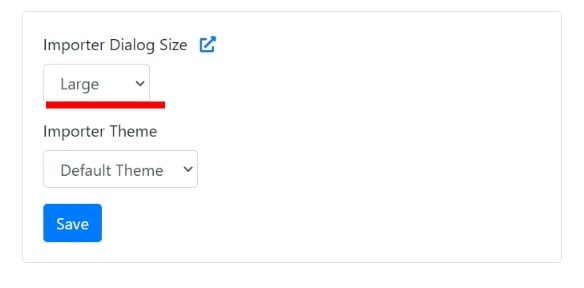 The dialog size configuration applies to large (desktop) screens only. On smaller screens, the dialog always occupies the entire screen.
## Importer theme
Choose the theme of the importer: **Light**, **Dark**, **Light Custom**, or **Dark Custom**. You can also apply the theme at runtime with the [`theme`](/getting-started/2-install-code#theme) option in the installation code.
## Logo
Upload your company logo to show in the importer for a fully branded experience. Provide a square logo. The best size is 30x30 px.
## Customize styling
The **Custom Theme** option lets you personalize the appearance of the importer to match your brand. Adjust colors, fonts, and layout sizes to create a consistent, professional look.
### How it works
Go to the importer sheet settings → **Display** tab and select the **Custom Theme** option under the **Importer Theme** label.
Use the **left sidebar controls** to modify colors, fonts, sizing, and other styling options.
Click **Preview** to instantly see how your changes affect the importer's appearance.
Once you're satisfied with the customization, click **Save** to apply the theme.
The dialog size configuration applies to large (desktop) screens only. On smaller screens, the dialog always occupies the entire screen.
## Importer theme
Choose the theme of the importer: **Light**, **Dark**, **Light Custom**, or **Dark Custom**. You can also apply the theme at runtime with the [`theme`](/getting-started/2-install-code#theme) option in the installation code.
## Logo
Upload your company logo to show in the importer for a fully branded experience. Provide a square logo. The best size is 30x30 px.
## Customize styling
The **Custom Theme** option lets you personalize the appearance of the importer to match your brand. Adjust colors, fonts, and layout sizes to create a consistent, professional look.
### How it works
Go to the importer sheet settings → **Display** tab and select the **Custom Theme** option under the **Importer Theme** label.
Use the **left sidebar controls** to modify colors, fonts, sizing, and other styling options.
Click **Preview** to instantly see how your changes affect the importer's appearance.
Once you're satisfied with the customization, click **Save** to apply the theme.
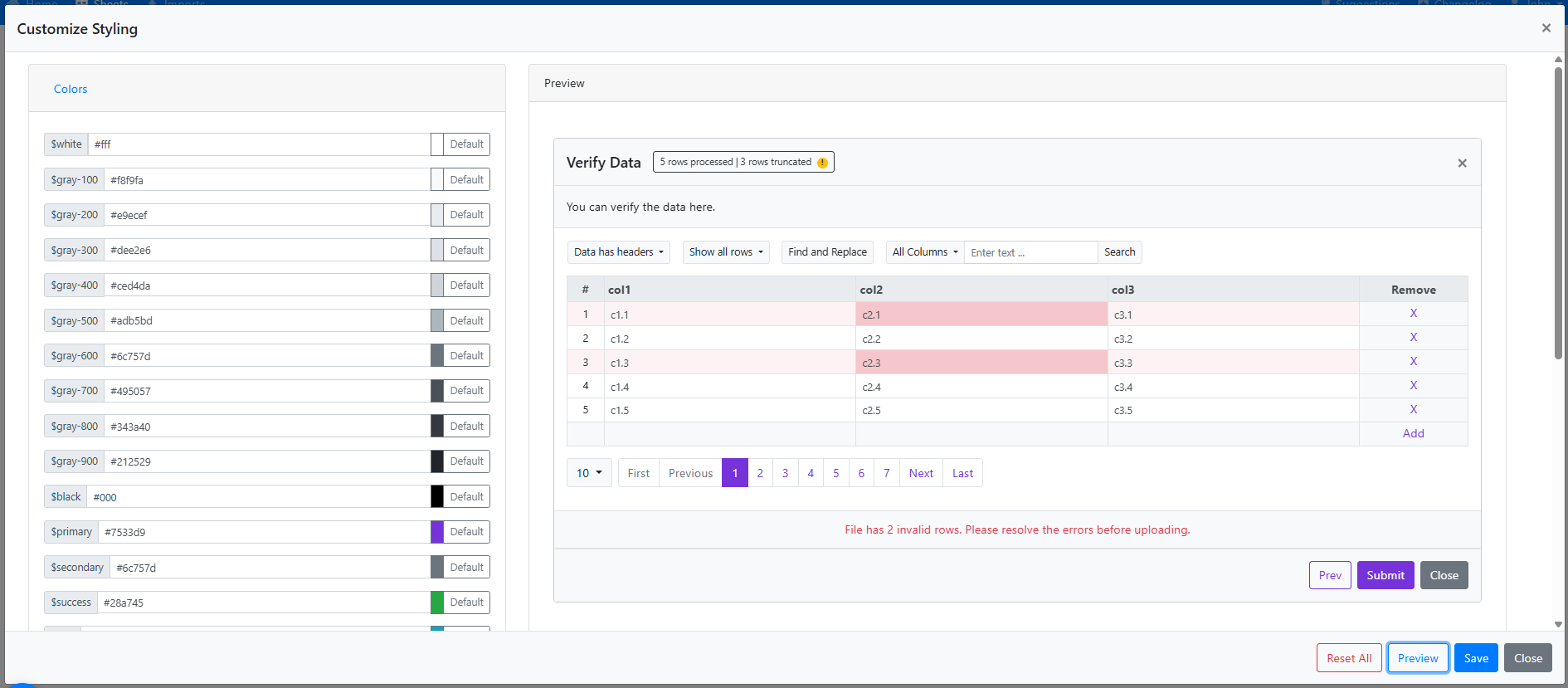 The styling options are grouped as follows:
* **Basic**: Colors, Sizing, and Typography
* **Advanced**: Dropdowns, Pagination, and Modals
If you need design tweaks beyond the provided options, [contact us](https://share.hsforms.com/1ubpg6RBoQgKOISkRMEViwg5auur). We're happy to assist with custom styling.
Custom Theme styling options are only available on the [Pro plan](https://csvbox.io/#pricing) and above.
### Reset all fields
Reset every styling field to its default value.
### Download & reuse importer styling (CSS)
You can reuse the same importer styling across multiple sheets or projects. After customizing the look and feel of your importer, download the styling as a CSS file, then upload it to another importer to instantly apply the same design with no rework.
This is especially useful when you want consistent branding across multiple imports or environments.
#### Download the styling file
Go to your importer's **Customize Styling** section and adjust colors, borders, typography, and other visual settings as needed.
Once you're happy with the design, click **Download CSS**. CSVbox saves your current styling as a reusable `.css` file.
This file contains all the visual configurations you've applied to the importer.
The styling options are grouped as follows:
* **Basic**: Colors, Sizing, and Typography
* **Advanced**: Dropdowns, Pagination, and Modals
If you need design tweaks beyond the provided options, [contact us](https://share.hsforms.com/1ubpg6RBoQgKOISkRMEViwg5auur). We're happy to assist with custom styling.
Custom Theme styling options are only available on the [Pro plan](https://csvbox.io/#pricing) and above.
### Reset all fields
Reset every styling field to its default value.
### Download & reuse importer styling (CSS)
You can reuse the same importer styling across multiple sheets or projects. After customizing the look and feel of your importer, download the styling as a CSS file, then upload it to another importer to instantly apply the same design with no rework.
This is especially useful when you want consistent branding across multiple imports or environments.
#### Download the styling file
Go to your importer's **Customize Styling** section and adjust colors, borders, typography, and other visual settings as needed.
Once you're happy with the design, click **Download CSS**. CSVbox saves your current styling as a reusable `.css` file.
This file contains all the visual configurations you've applied to the importer.
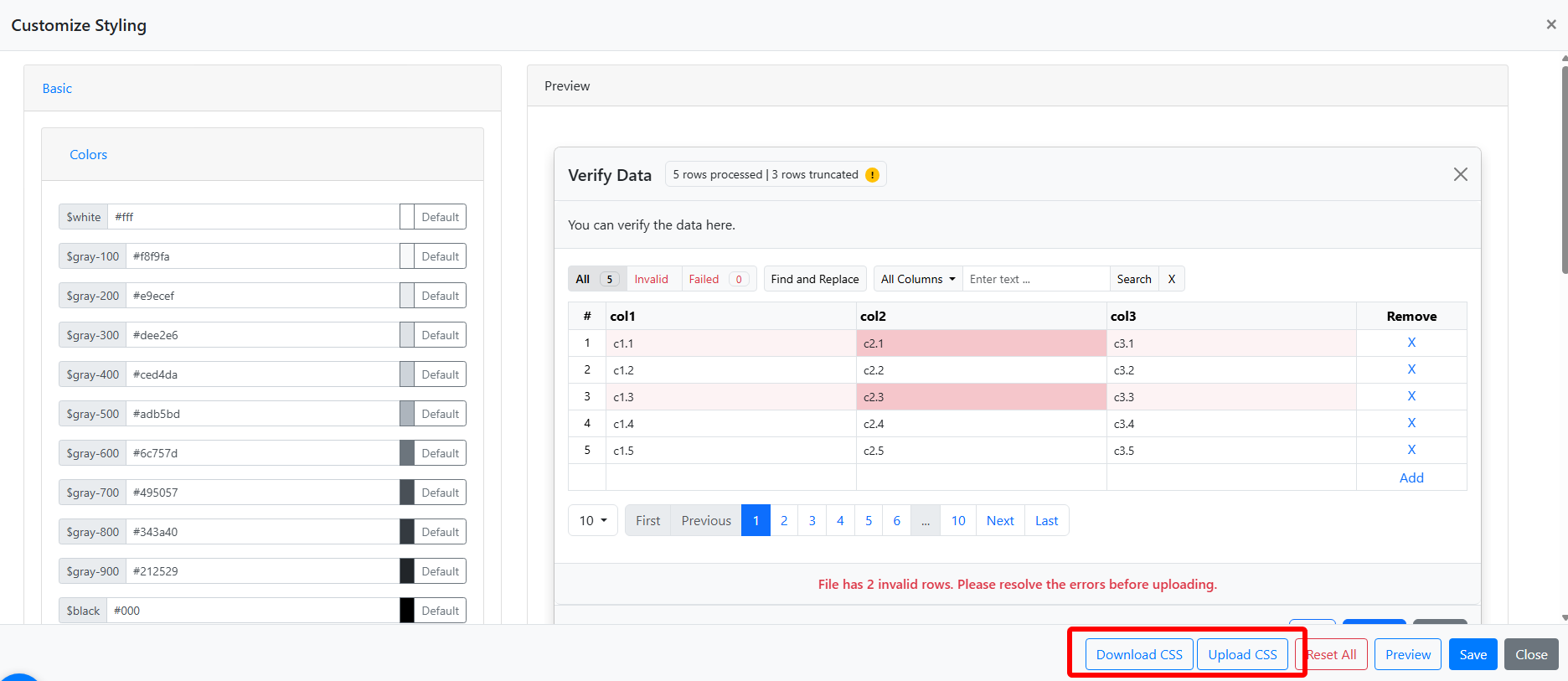 #### Reusing the styling on another importer
To apply the same styling to another sheet or importer:
1. Open the **Customize Styling** section of the new importer.
2. Click **Upload CSS**.
3. Select the previously downloaded CSS file.
The styling is applied instantly to the importer preview.
Review the updated look in the preview, then click **Save** to persist the styling. Your importer now matches the original design.
#### Notes and best practices
* Uploading a CSS file **overwrites the current styling** of the importer.
* You can still make further adjustments after uploading.
* Always preview before saving to make sure everything looks correct.
* Keep a backup of your CSS files if you maintain multiple themes.
## Hide cancel button
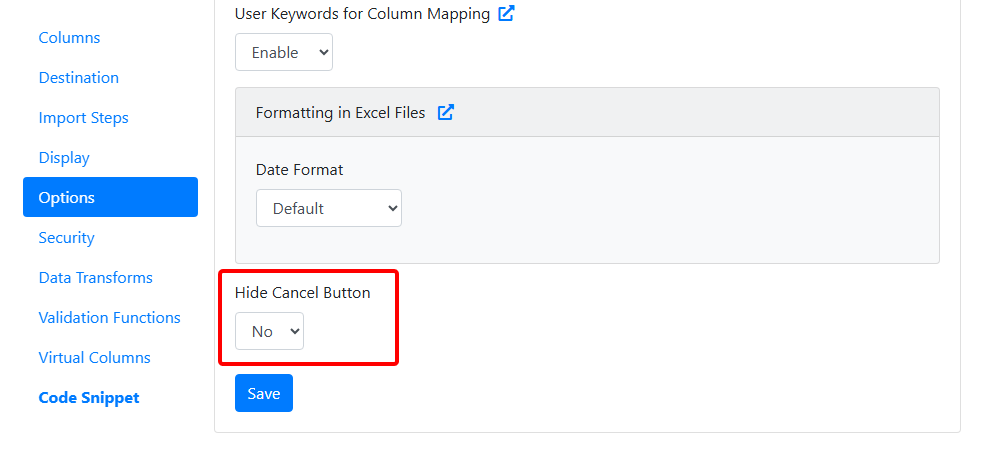
Hide the **Cancel** button at the bottom-right corner of the importer.
The **X (close)** button at the top-right corner stays. Hiding **Cancel** helps prevent users from abandoning the import by accident and keeps them focused on the **Submit** button, which suits workflows where you want to guide users toward submission.
**Default**: `No`
#### Reusing the styling on another importer
To apply the same styling to another sheet or importer:
1. Open the **Customize Styling** section of the new importer.
2. Click **Upload CSS**.
3. Select the previously downloaded CSS file.
The styling is applied instantly to the importer preview.
Review the updated look in the preview, then click **Save** to persist the styling. Your importer now matches the original design.
#### Notes and best practices
* Uploading a CSS file **overwrites the current styling** of the importer.
* You can still make further adjustments after uploading.
* Always preview before saving to make sure everything looks correct.
* Keep a backup of your CSS files if you maintain multiple themes.
## Hide cancel button
Hide the **Cancel** button at the bottom-right corner of the importer.
The **X (close)** button at the top-right corner stays. Hiding **Cancel** helps prevent users from abandoning the import by accident and keeps them focused on the **Submit** button, which suits workflows where you want to guide users toward submission.
**Default**: `No`
 This documentation is built and hosted on [Mintlify](https://mintlify.com), a developer documentation platform.