
Closing the import dialog box
Control what happens to the importer dialog after the import is complete. This applies to the embedded importer only.- Close on import complete (success or errors)
- Close only when import is successfully completed
- Do not close on import complete
- Redirect only when import is successfully completed
Redirect page URL
Redirect end users to any page after a successful import. Specify a custom URL to redirect users to when an import completes successfully. This lets you direct users to a specific page immediately after the import and streamline your workflow.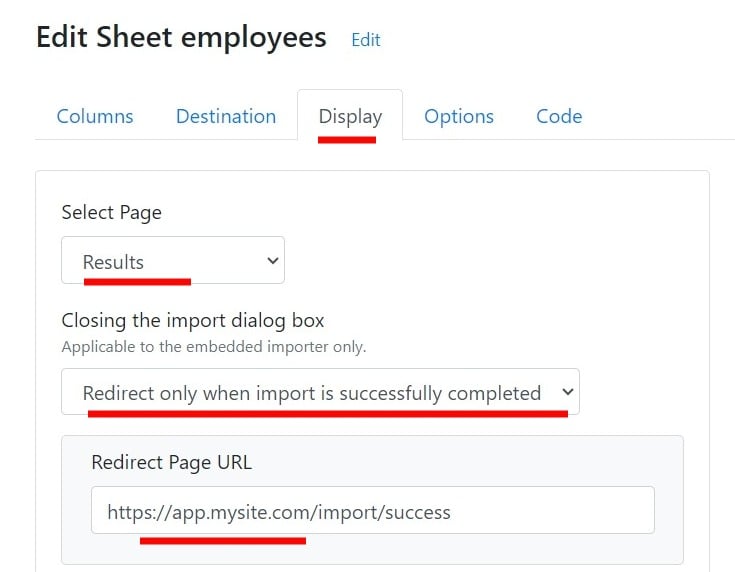
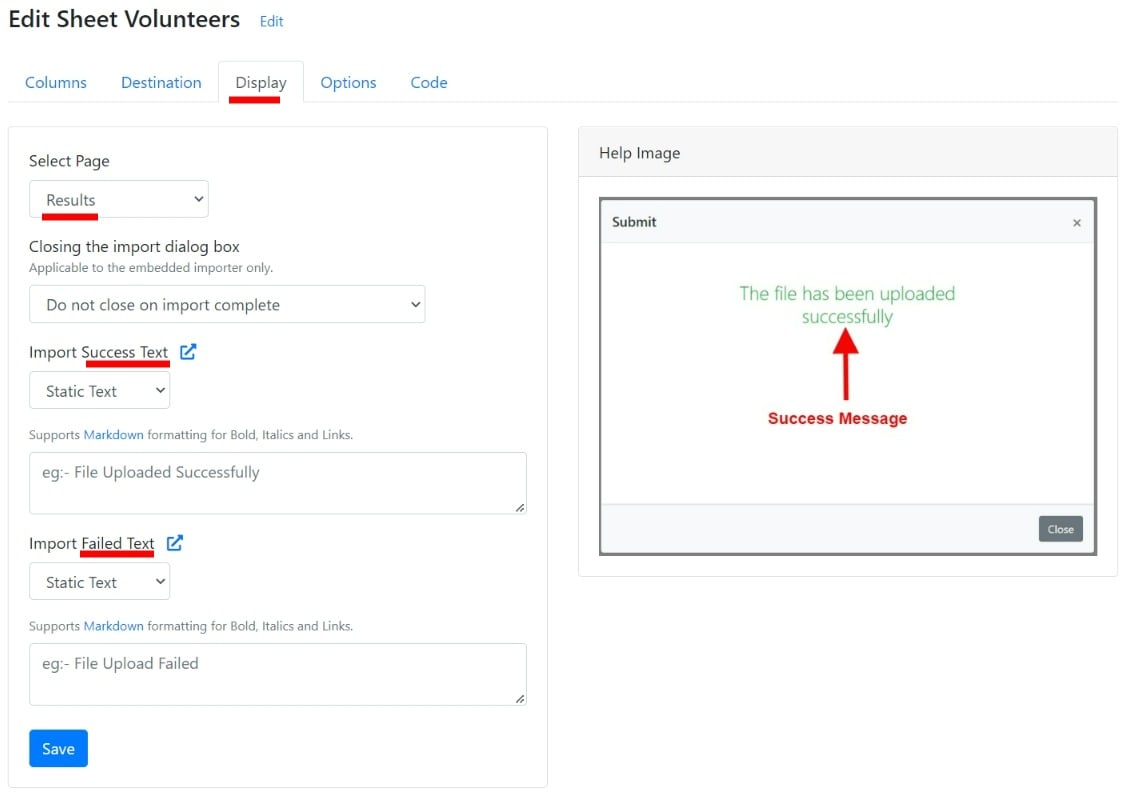
Import success text and import failed text
Show custom messages when the import is completed. You can show customized success or failure messages when the import is complete. The messages can be:- Static: Any fixed text as per your requirements.
- Dynamic: Provide an API to fetch the message text in real time. The importer appends metadata (
import_id,sheet_id) to the API as query parameters, which helps determine the context and return relevant messages.
Show resubmit button
One click to resubmit the same CSV file again. Show or hide the Resubmit button on the Import Success screen. The Resubmit button triggers a new import that pushes the same file with the same import configuration. This is useful during testing and debugging. You don’t have to upload the file, match columns, and confirm data again: click Resubmit to push the file to the same destination.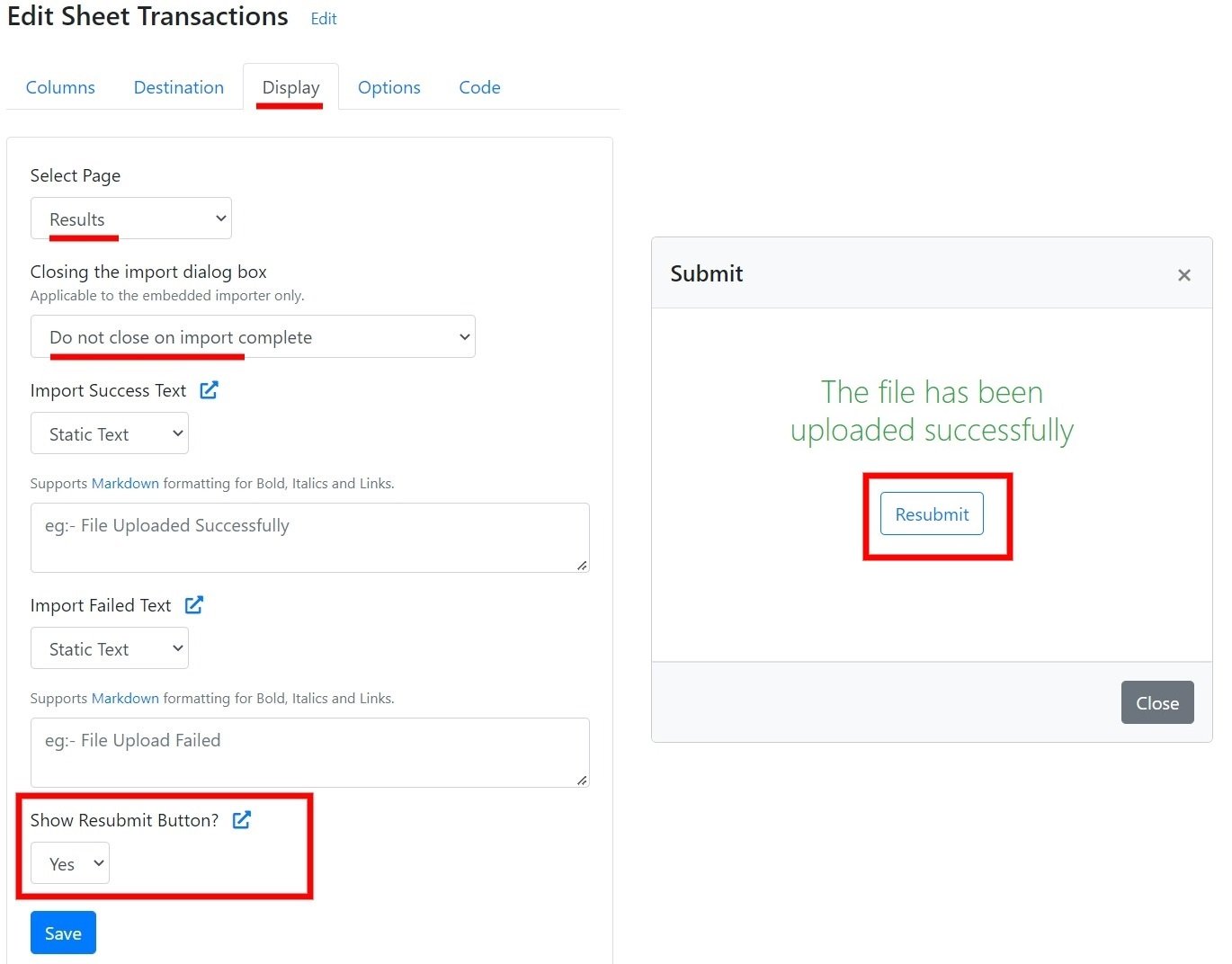
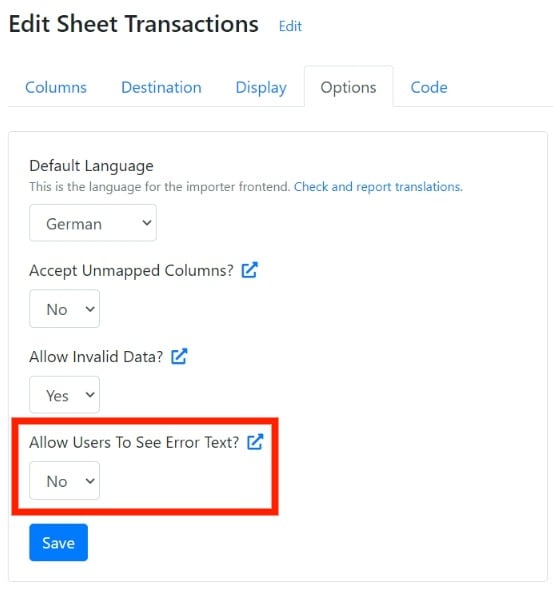
Allow users to see error text
Display the import fail error messages back to end users.