

Defining environment variables
1
Create the environment object
Create an object named
environment.2
Add your variables
Add the variables to this object in
<key>: <value> format.3
Pass the object to the importer
Pass the
environment object as a parameter to the importer initialization function.- Javascript
- React
- Angular
- Vuejs
Pass the
environment object to the CSVBoxImporter function:env_name is a CSVbox reserved keyword that tags the environment. Each import is categorized by its value: pass values such as 'production', 'staging', or 'local'. If you don’t pass a value, env_name defaults to 'default'. You can filter individual imports by env_name in the CSVbox admin dashboard.
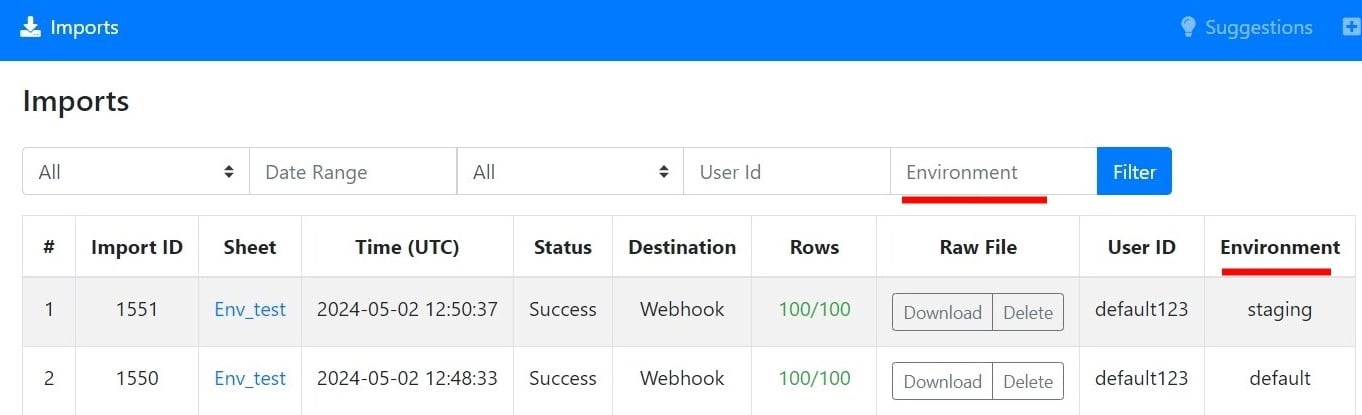
Filter via Environment on the Import page
Accessing the variables
Environment variable values replace all the environment placeholders in the sheet settings. Define a placeholder with double curly brackets:{{ environment_variable_name }}.
For example, to reference an environment variable named base_url, wrap the variable name in double curly braces:
{{base_url}}/route-endpoint
Using environment variables in the webhook URL lets you adjust the webhook route to the specific environment.
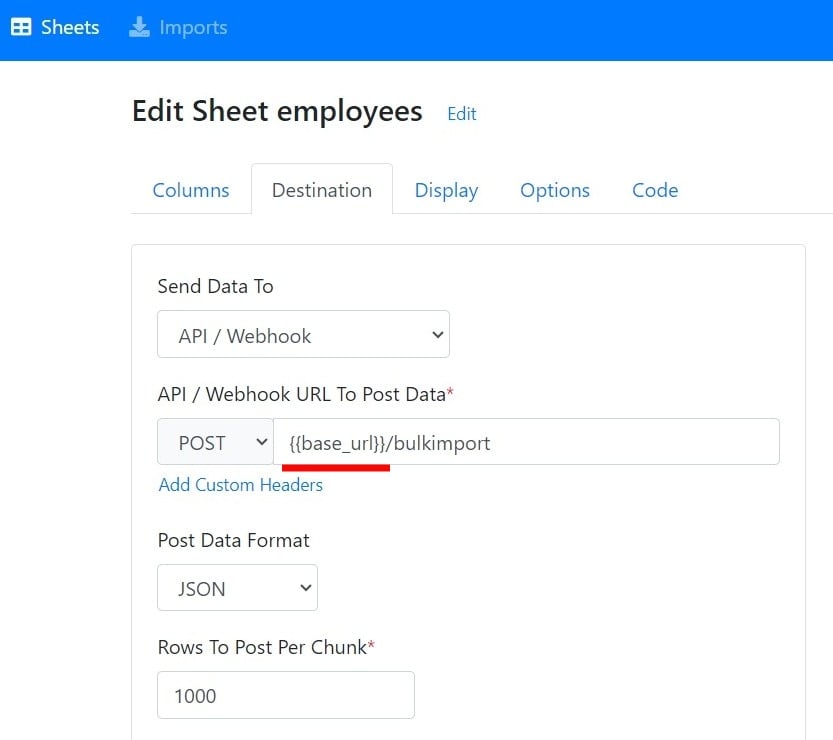
Defining Environment Placeholder
user_id and pass it to the webhook URL to configure the URL per end user.
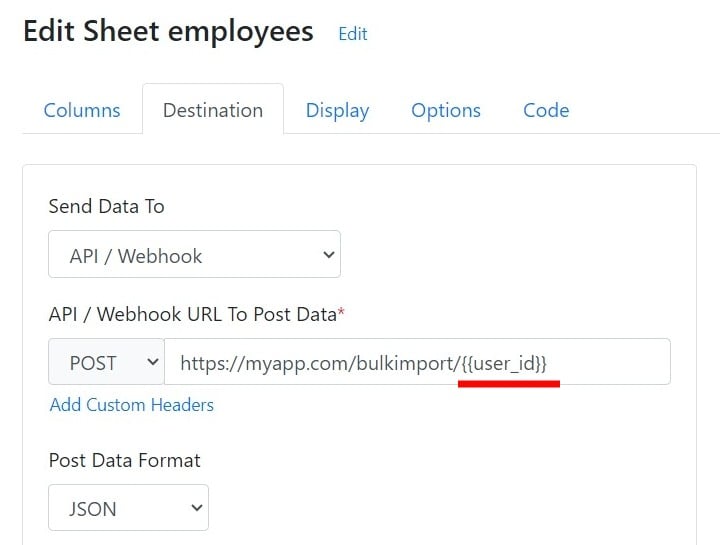
user_id env variable
Encrypting environment variables
You can encrypt environment variables with the AES Everywhere library to protect sensitive data.AES Everywhere library
The AES Everywhere library provides a simple, effective way to encrypt and decrypt data with the Advanced Encryption Standard (AES) algorithm. It supports many platforms and programming languages, which makes it a versatile choice for securing environment variables. CSVbox supports multiple encryption schemes for securing sensitive importer data at rest. Choose the mode that best fits your security or compliance requirements.Supported encryption types
Steps
1
Install the library
Install the AES Everywhere library in your app.
2
Open the encryption key settings
In your app admin dashboard, go to Account Menu → API Keys page → Encryption Key section.
3
Choose the encryption settings
Select the Encryption Type and Encryption Mode.
4
Generate an encryption key
Generate a secure encryption key.
5
Encrypt the environment variables
Use your encryption key and the AES Everywhere library to encrypt the environment variables.Here is an example in JavaScript:
Encrypt all the required environment variables in one single object.
6
Pass the encrypted value
Add the encrypted value to the
environment object, under the env_encrypted key.Javascript